Back to Help center
Notes and templates
Review, change and copy your note, and make SOAPsuds write in your format.
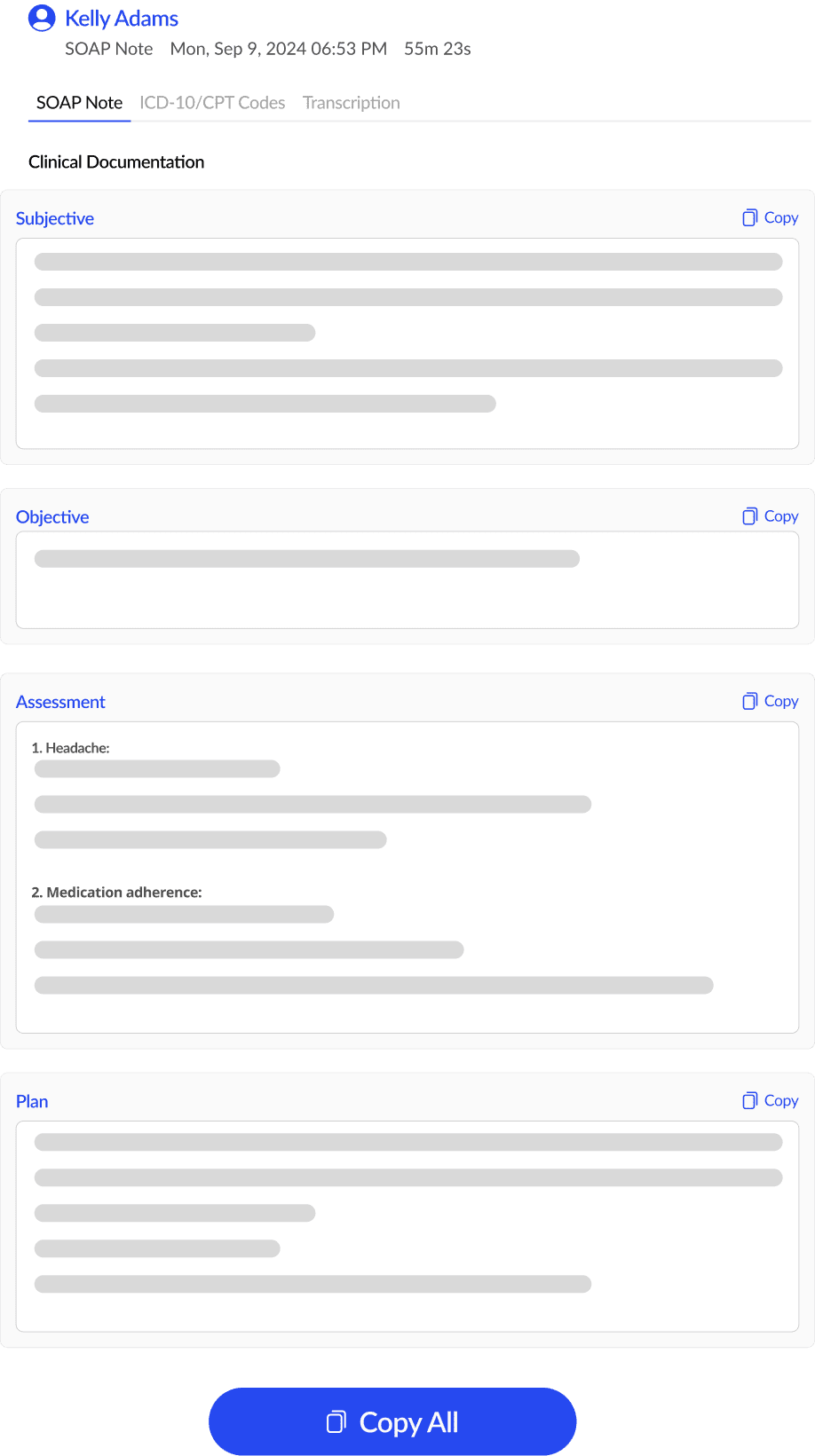
- Reviewing and signing your noteEvery note SOAPsuds writes is a draft for your review. Read each section, fix anything by typing straight into it, then press Mark reviewed (or Sign note, if your practice signs notes in SOAPsuds).
- Copy your note into your EHRPress Copy full note above your note, then paste it into the note field in your EHR. SOAPsuds doesn’t connect to your EHR, so pasting is the step that moves the note across.
- Export or print a noteOpen Export beside Copy full note and choose Download PDF, Download Word file or Print. The file goes to your browser’s downloads.
- Choose a note type: SOAP, DAP, BIRP and moreSOAPsuds writes notes in a template. Pick one of the SOAPsuds templates on the Templates page, or add your own, and press Make default so new notes use it.
- Make notes shorter or longerChoose Concise, Standard or Detailed. Set it for all new notes in Settings › Note preferences, or rewrite one note at a different length from Note settings on the visit.
- Revise a note with Magic editMagic edit rewrites the whole note from an instruction you type in plain words, like “make the plan a numbered list”. You see what changed, then keep the changes or undo them.
- Fix one section without redoing the noteClick into the section and type. Each section is its own text box, your change saves as you type, and the rest of the note stays exactly as it was.
- See where a line in the note came fromTurn on Show sources above the note, then put the cursor in any line. The transcript lines that line was based on show under the box, with Show in transcript to jump to them.
- Read the full transcriptOpen the visit and choose the Transcript tab. It shows what SOAPsuds heard, line by line, and is kept with the visit for 30 days after the visit time.
- Patient instructionsWhen your template has a Patient instructions section, SOAPsuds writes them with the note. They sit under the note in Also from this visit, where you can edit, copy or rewrite them.
- Make your own template from a note you already useOn Templates, press Create template and upload or paste a past note with patient details removed. SOAPsuds reads its sections, you check them, then press Approve and make default.
- Edit or delete a templateOn Templates › My templates, open a template’s menu (···) to Make default, Edit, Rename, Duplicate or Delete it. Changes apply to new notes only.
- Suggested codes in your noteThe Codes tab lists ICD-10-CM and CPT codes suggested from the visit, each with the words from the visit it is based on. They are a draft for your review: none are added until you press Keep.
- Documentation completeness checkThe Documentation check looks at whether the standard parts of your note are there and agree with each other. It is not related to coding level or payment, and nothing is added to your note unless you add it.
- Follow-up items and draft referralsAfter the note is written, SOAPsuds reads the whole visit for follow-up items and possible referral topics, each with the words they came from. You decide on each one; nothing is sent or added to the note until you choose.
- Clinical decision support: what the panel showsClinical insights is a side panel you open on a visit. It drafts conditions to consider and plan options to consider, each with points for and against from this visit. It’s a draft for your review; you make every decision.
Still need help?
Email support@soapsuds.io or send us a message. Please don't include patient names or details; the visit date and time is enough for us to find it.