Back to Help center
Recording a visit
In person, telehealth, uploads, and what happens when the connection drops.
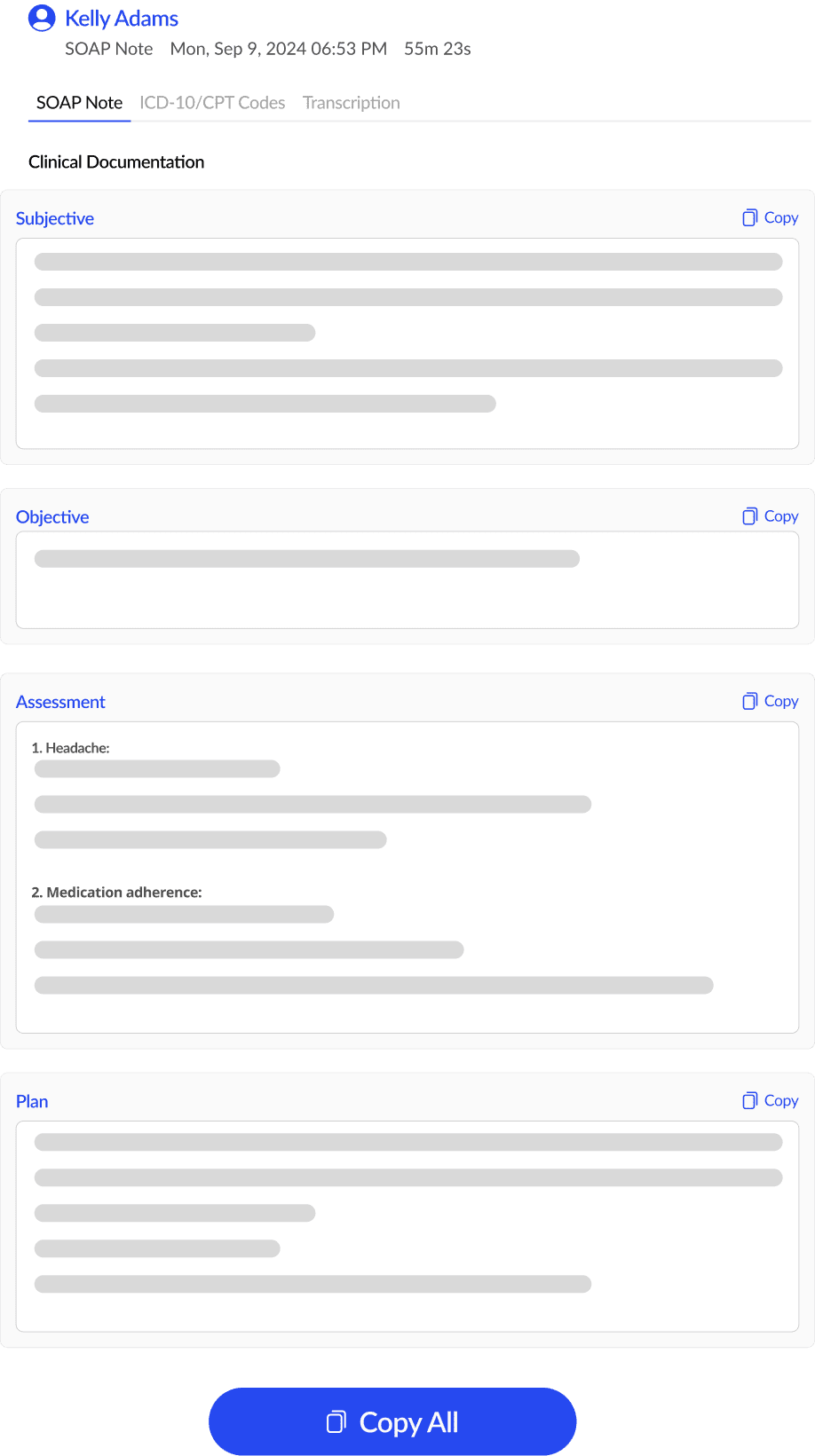
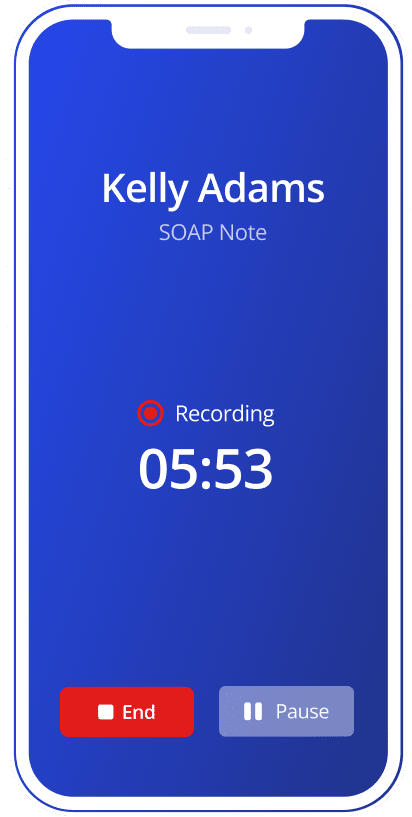
- Start, pause and end a recordingType the patient's name on New visit, choose In person and press Start recording. Use Pause and Resume as needed, then press End recording: SOAPsuds uploads the visit and writes a draft note for your review.
- Recording an in-person visit vs a telehealth callChoose In person when you and the patient are in the same room: SOAPsuds records your microphone. Choose Telehealth for a video call on your computer: SOAPsuds records the call's tab and your microphone, so it hears both sides.
- Upload a recording you already haveOn New visit, type the patient's name, choose Upload recording and press Choose a recording. Pick an MP3 or WAV file at least 30 seconds long, then press Upload and write note.
- New or established patient, and visit detailsOnly the patient's name is required to start a visit. Visit type (New patient or Established patient), the patient's pronouns and the note length shape how the note is written, and you can change them on the visit afterwards.
- Pausing a recordingPress Pause on the recording bar to put the visit on hold, and Resume to carry on. Nothing is recorded while paused, and the note is not written until you press End recording.
- Recording when your internet dropsKeep recording. SOAPsuds saves the visit encrypted on your device as it records and uploads it by itself once you are back online. The note is written then.
- Closing the browser mid-uploadAfter you press End, your visit is kept encrypted on this device until it uploads. In Chrome, Edge and Samsung Internet the upload can finish with SOAPsuds closed; in Safari, on an iPhone and in Firefox, keep SOAPsuds open until it finishes.
- Live transcript while you recordWhile you record, the Live transcript panel shows the words as they are spoken, so you can see SOAPsuds is hearing the visit. Your note is written from the full recording, not from the live transcript.
- Speaker labels: who said whatSOAPsuds separates the voices in a visit into Speaker 1, Speaker 2 and so on, but it does not recognise who is who. After the visit, open the Transcript tab and choose a role for each speaker in Speaker roles.
- Recording minors and sensitive visitsYou decide what to record. Pause for any part that should not be recorded, end the visit without a note if needed, and follow your practice's policy for minors. Some templates keep what a teen says when seen alone in a separate confidential section.
- Asking the patient for permission to recordAsk before you press Start, in plain words, and respect a no. Below is suggested wording you can adapt. Your practice's policy decides what you must say; this is not legal advice.
Still need help?
Email support@soapsuds.io or send us a message. Please don't include patient names or details; the visit date and time is enough for us to find it.