Before you start
Remove patient names, dates of birth, MRNs, addresses and any other identifiers first. SOAPsuds only needs the headings and how each section is written.
Add your template
- Open Templates and press Create template.
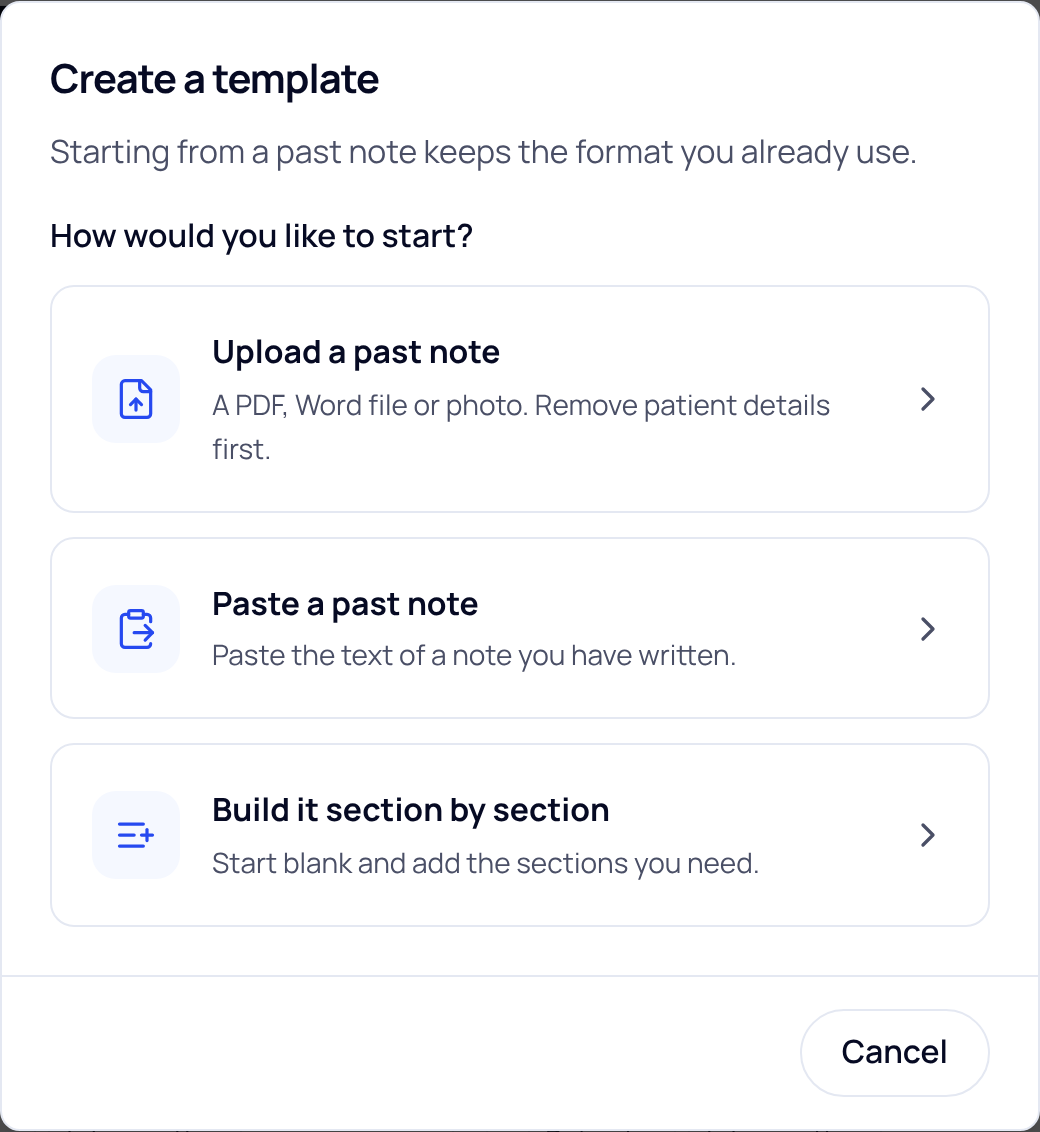
- Choose how to start. Upload a past note (a PDF, Word file or photo), Paste a past note, or Build it section by section.
- Upload or paste your note. Press Next. Reading the sections usually takes under a minute.
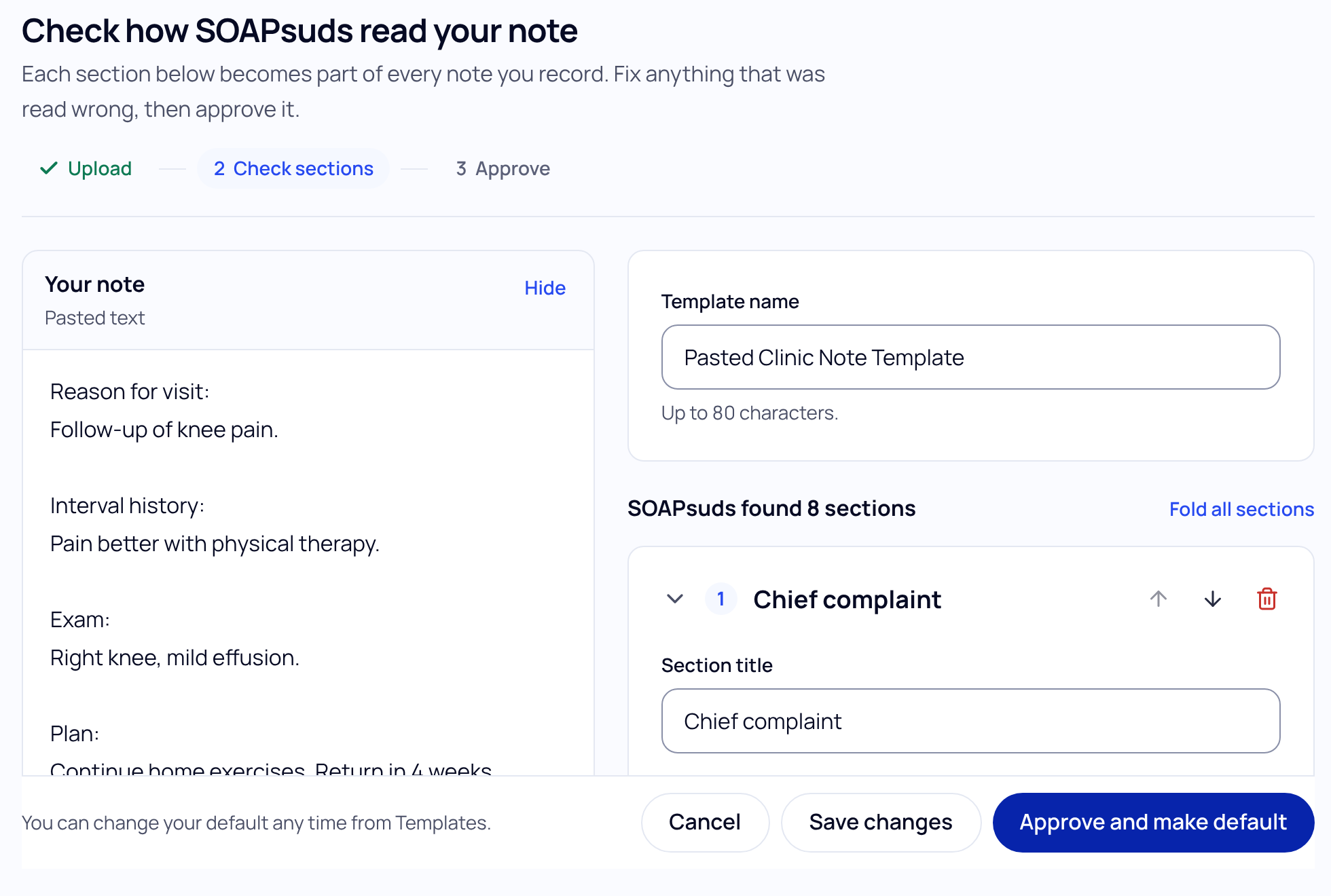
- Check the sections. On Check how SOAPsuds read your note, your note sits beside the sections SOAPsuds found. Rename, reorder, add or remove sections, and fix what each one should contain.
- Name it and approve it. Give it a Template name, then press Approve and make default. Your next note is written in this template. Or press Save changes to keep it without making it your default.
What you can set for each section
- Section title and What SOAPsuds should write here: an instruction, not patient details. A short example of how you write it also helps.
- Length: Concise or Detailed. Format: Paragraph or Bullet points.
- Add sub-section and Add formatting rules for anything else.
Not sure? Press Preview with a sample visit to see a note written in these sections from a fictional visit. Nothing is saved.
Checking every section is easier on a computer, but you can do it on a phone.
Did this answer your question?
Still need help?
Email support@soapsuds.io or send us a message. Please don't include patient names or details; the visit date and time is enough for us to find it.