Read and fix the draft
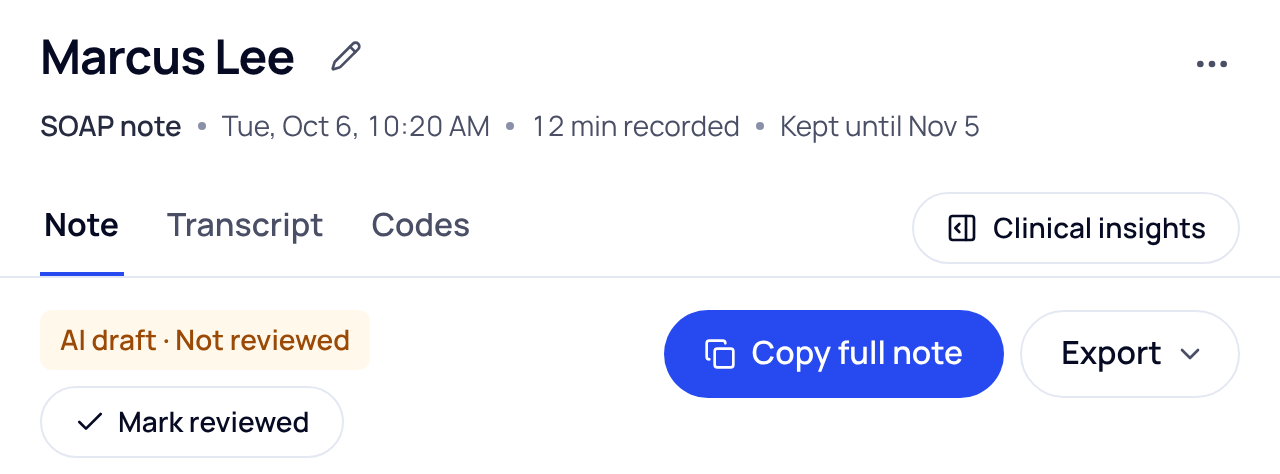
A new note opens on the Note tab with the label AI draft · Not reviewed above it.
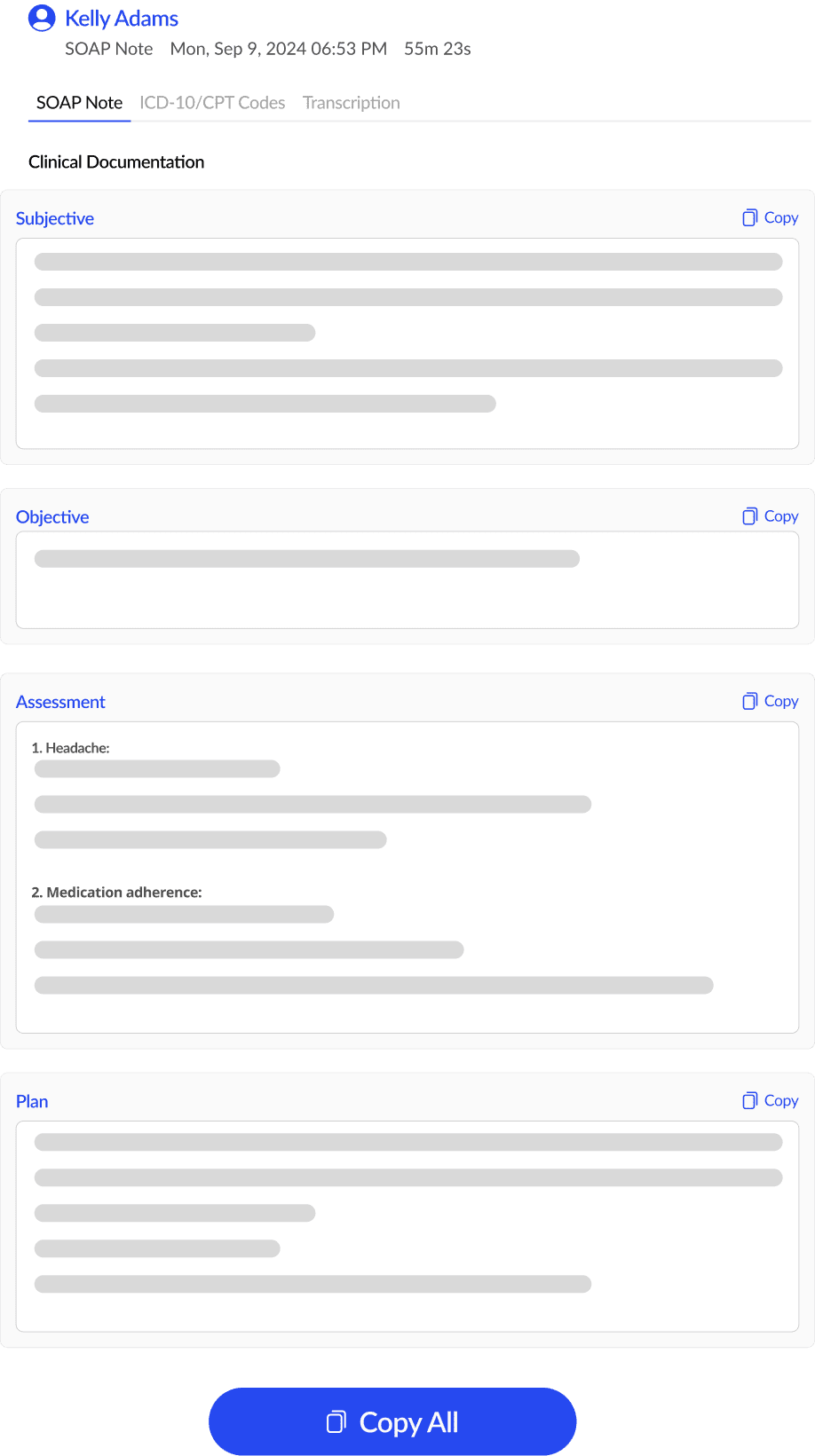
- Read every section. Each section is an open text box. There is no Edit button: click into a box and type.
- Fix anything that is off. Changes save as you type. The line above the note says Saving… and then All changes saved.
- Check marked lines. Lines such as “Not stated in this visit.” or “[unclear]” are marked. Fill them in, or keep them as written.
- Press Mark reviewed. It sits under the draft label, and again at the end of the note (“Read every section? Mark the note reviewed.”). The label changes to Reviewed with the date and time.
Changed your mind? Press Mark not reviewed.
Sign the note
Sign note shows only for practices that sign notes in SOAPsuds. If you have it, it is the blue button at the top of the side panel.
- If you haven’t marked the note reviewed, SOAPsuds asks first: Sign this note? Signing puts your signature on the note as it is now.
- Once signed, the note shows Signed.
Nothing stops you from copying or signing. Documentation check items and marked lines are there to help you check the note; you don’t have to answer them first.
When you can’t mark it reviewed yet
- While a rewrite is running, or waiting for you to press Keep changes or Undo these changes, the note can’t be marked reviewed or signed. The screen says why.
- A rewrite (Magic edit or a Note settings change) puts a reviewed note back to draft, so you read it again.
Until you sign, every PDF and Word file of the note says “Draft. Not signed.” at the top of each page.
Did this answer your question?
Still need help?
Email support@soapsuds.io or send us a message. Please don't include patient names or details; the visit date and time is enough for us to find it.