Find the template
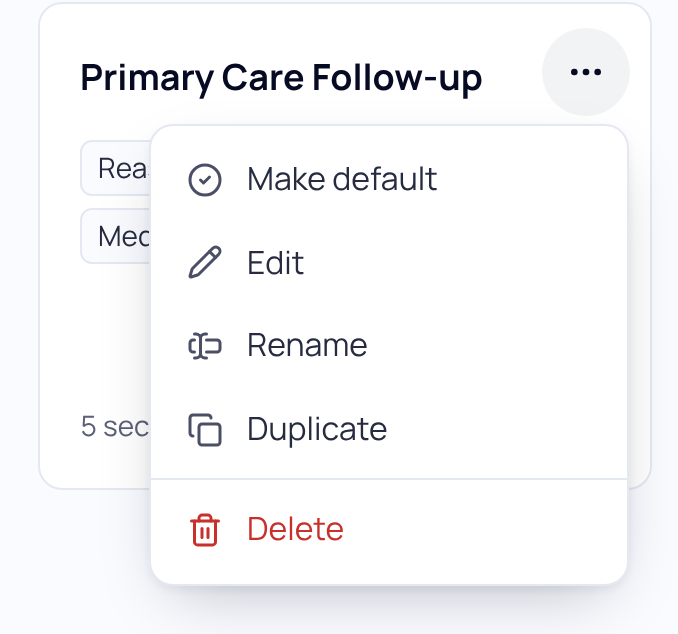
Open Templates, choose My templates, and press the menu (···) on the template.
| Choose | What happens |
|---|---|
| Make default | Your next note is written in this template. |
| Edit | Change, reorder, add or remove sections. Changes apply to notes you record from now on. Notes you already have stay as they are. |
| Rename | Past notes keep their content. New notes use the new name. |
| Duplicate | Makes a copy you can change without touching the original. |
| Delete | Removes it from My templates. Notes already written keep their text. |
Edit it from a note
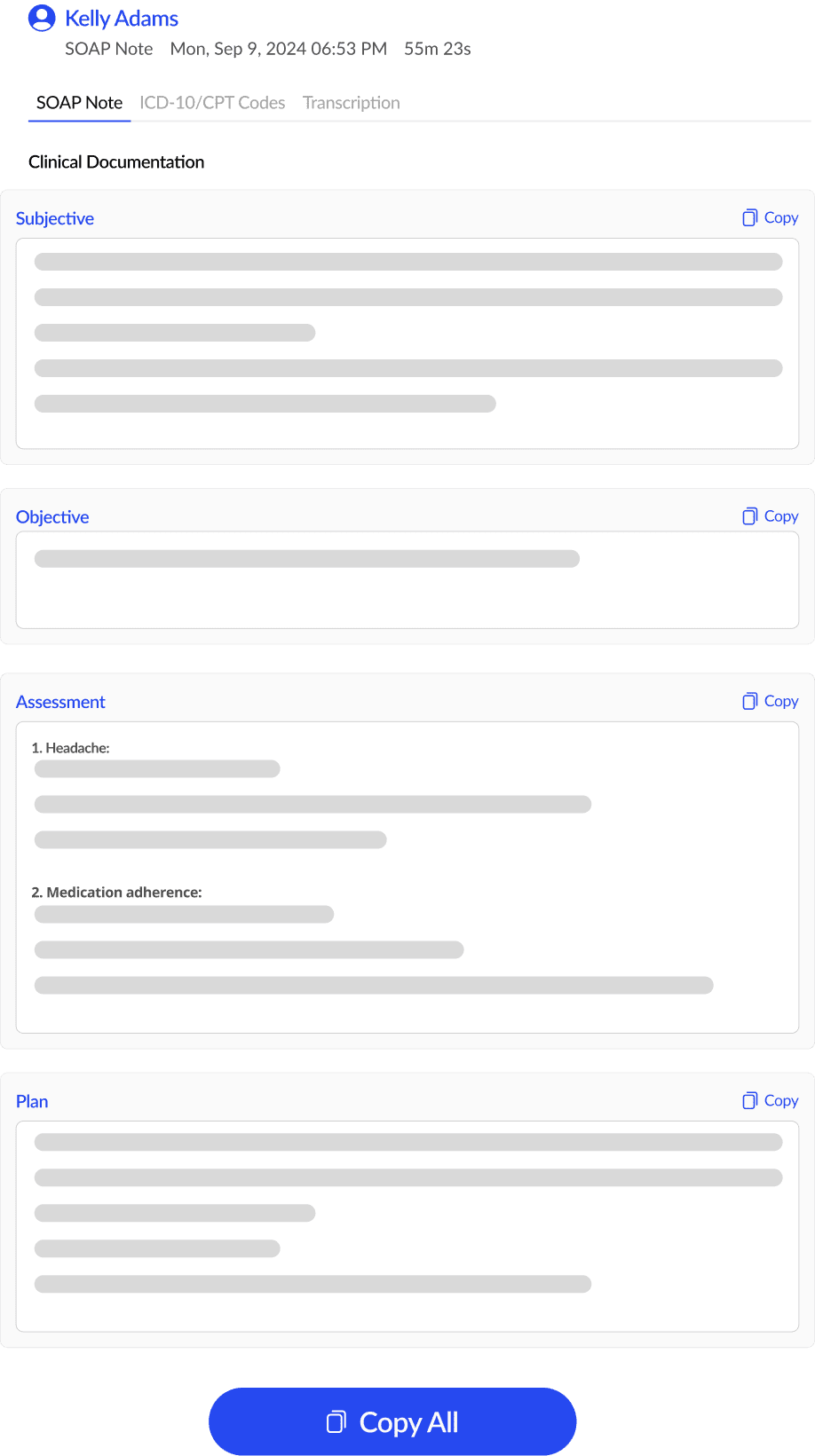
Reading a note and want the next one to be different? In the visit’s side panel press Edit your template. It opens the template that note was written in, and saving brings you back to the note.
Deleting your default
If you delete your default template, new notes use SOAP note instead. Right after deleting, you can press Undo in the message to bring it back.
SOAPsuds templates can’t be edited. Choose Customize in their menu to edit your own copy; the original stays available.
Practice admins can look through templates but can’t change them. Each clinician adds their own templates and picks their own default.
Did this answer your question?
Still need help?
Email support@soapsuds.io or send us a message. Please don't include patient names or details; the visit date and time is enough for us to find it.