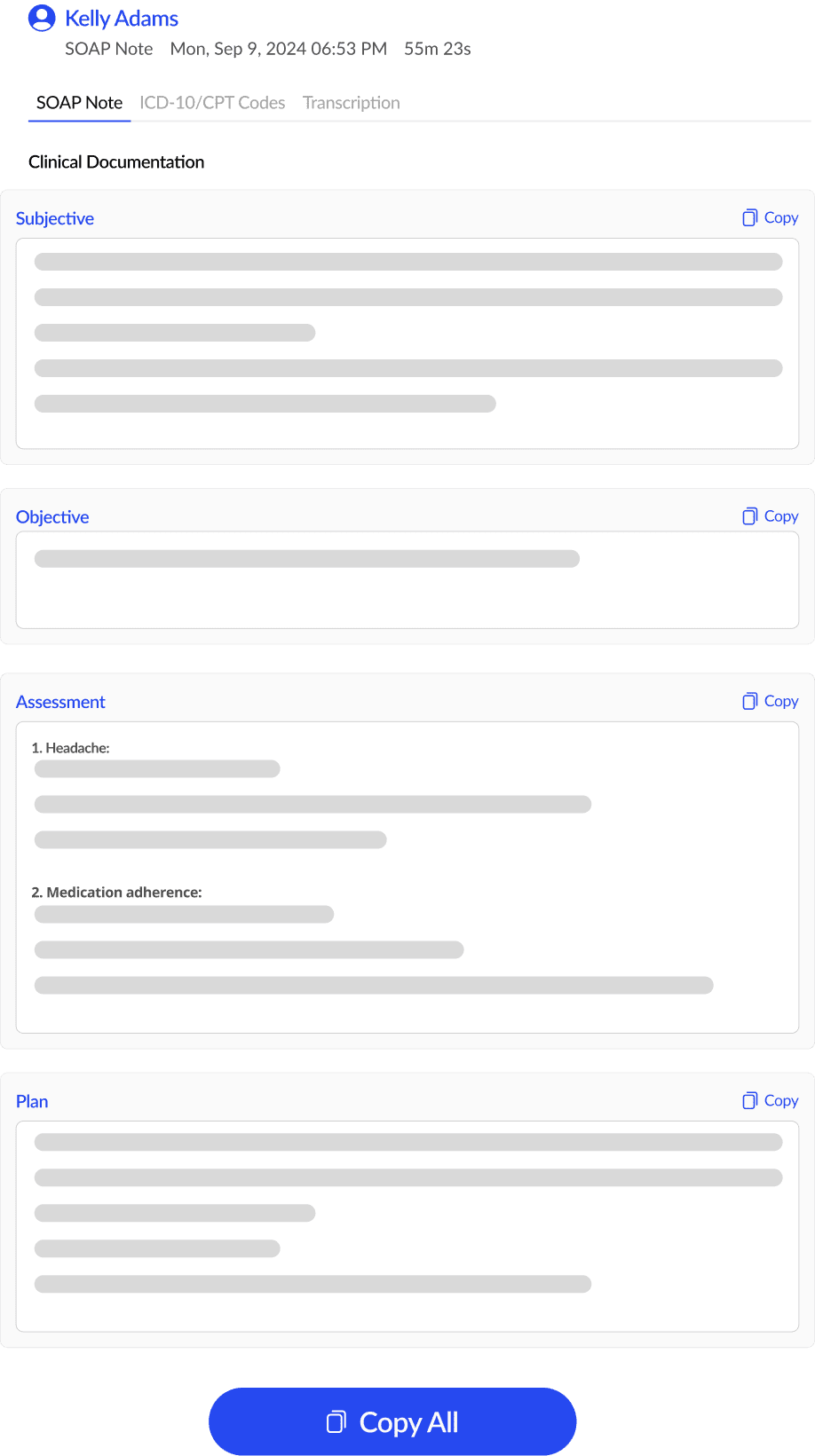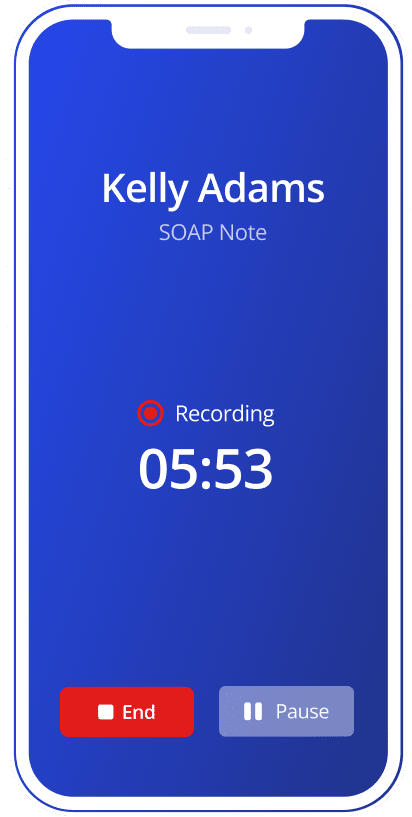
Check a line
- Make sure Show sources is on. It’s the switch above the note. It starts on, and SOAPsuds remembers your choice on this device.
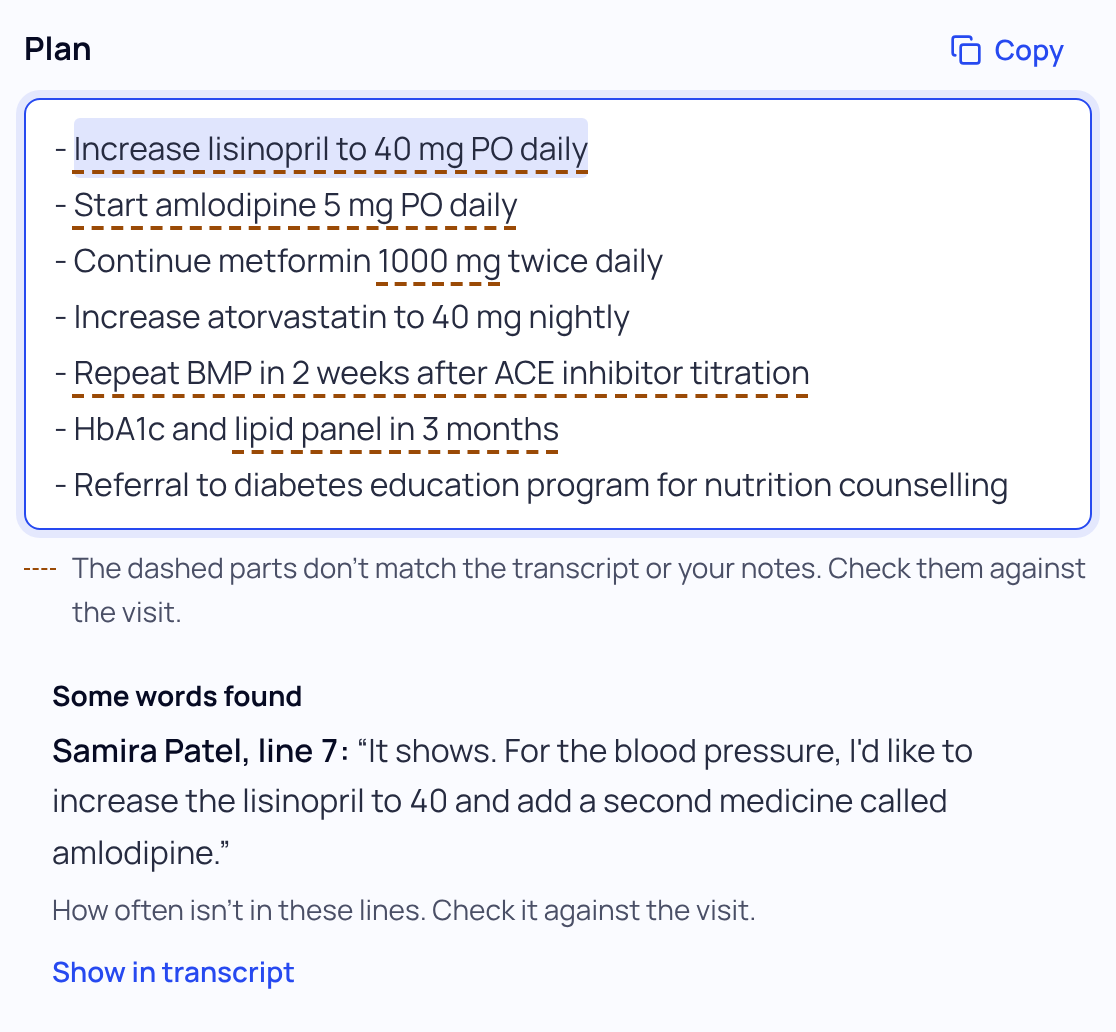
- Click into a line of the note. The line gets a light highlight, and its sources show under the box.
- Read the quotes. Each quote names who said it and the transcript line, for example “line 7”. Some come from your notes or the visit details instead.
- Press Show in transcript. The Transcript tab opens with those lines highlighted. Press Back to note (or your browser’s Back) to return to the same line.
What the labels mean
| Label | Meaning |
|---|---|
| Words found in the visit | The line’s words appear in the quoted lines. |
| Some words found | Part of the line matches. SOAPsuds says what it couldn’t find. |
| Words not found in the visit | No matching words. Check this line against the visit. |
| Check this denial | The note says the patient denied something. Check what was actually said. |
Parts of the note that don’t match the transcript or your notes have a dashed underline.
Sources match words, not meaning. A turned-around number, the wrong side or the wrong speaker can still look found. Check numbers, sides and who said what yourself.
Show sources never changes your note and never stops you from copying or signing. Turn it off any time with the switch.
Did this answer your question?
Still need help?
Email support@soapsuds.io or send us a message. Please don't include patient names or details; the visit date and time is enough for us to find it.