Find them
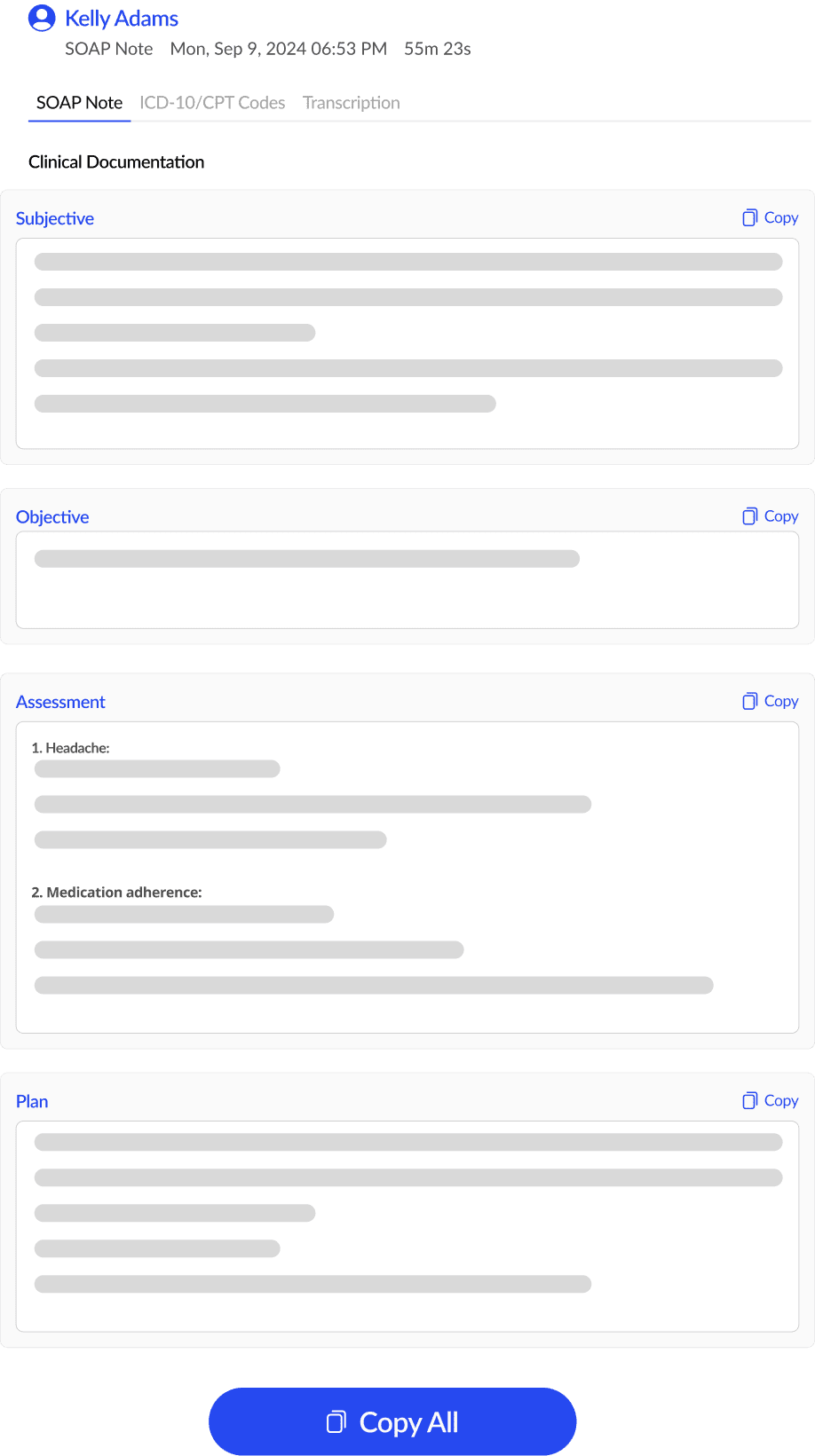
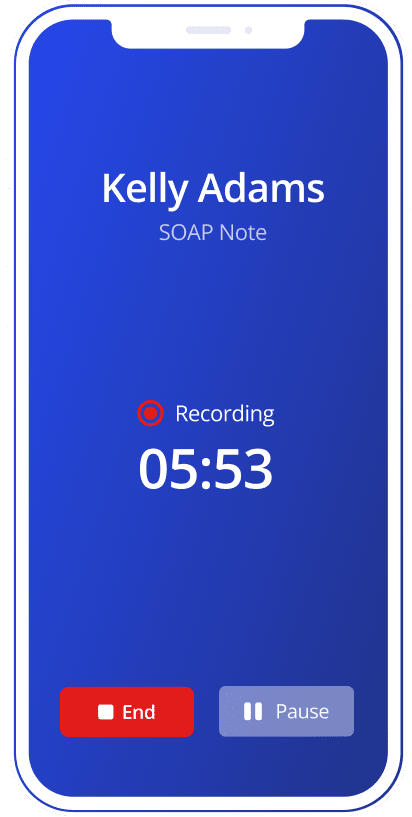
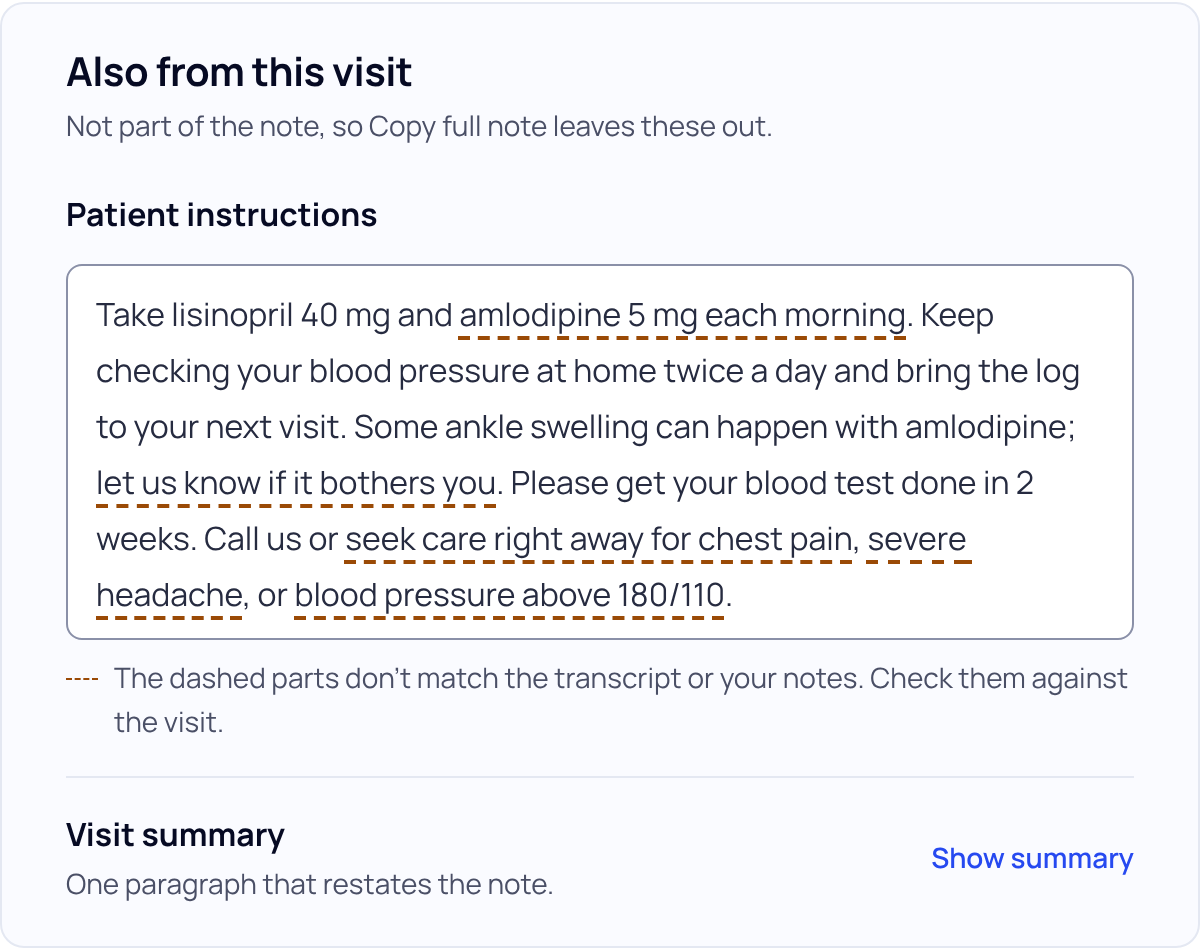
Open the visit and scroll past the note to Also from this visit. Patient instructions aren’t part of the clinical note, so Copy full note leaves them out.
Edit and copy them
- Click into the box and type. Changes save as you type.
- Press the section’s Copy button to paste them into a portal message or handout.
- PDF and Word files and printouts add them after the note.
Rewrite them in plainer words
- In the side panel, press Fix it with Magic edit.
- Tap Simplify patient instructions. It fills in an instruction to rewrite them in plain language, at about a sixth-grade reading level. You can change the words.
- Press Rewrite note, then Keep changes or Undo these changes. Magic edit can change other sections too, so check the whole list of changes.
Read the instructions before you give them to the patient. They are a draft for your review, written from the visit.
Don’t see patient instructions? Your template may not have that section. Add one with Edit or delete a template.
Did this answer your question?
Still need help?
Email support@soapsuds.io or send us a message. Please don't include patient names or details; the visit date and time is enough for us to find it.