Upload a file
- Type the patient's name on New visit. First name or initials is enough.
- Choose Upload recording. On a phone it is called Upload.
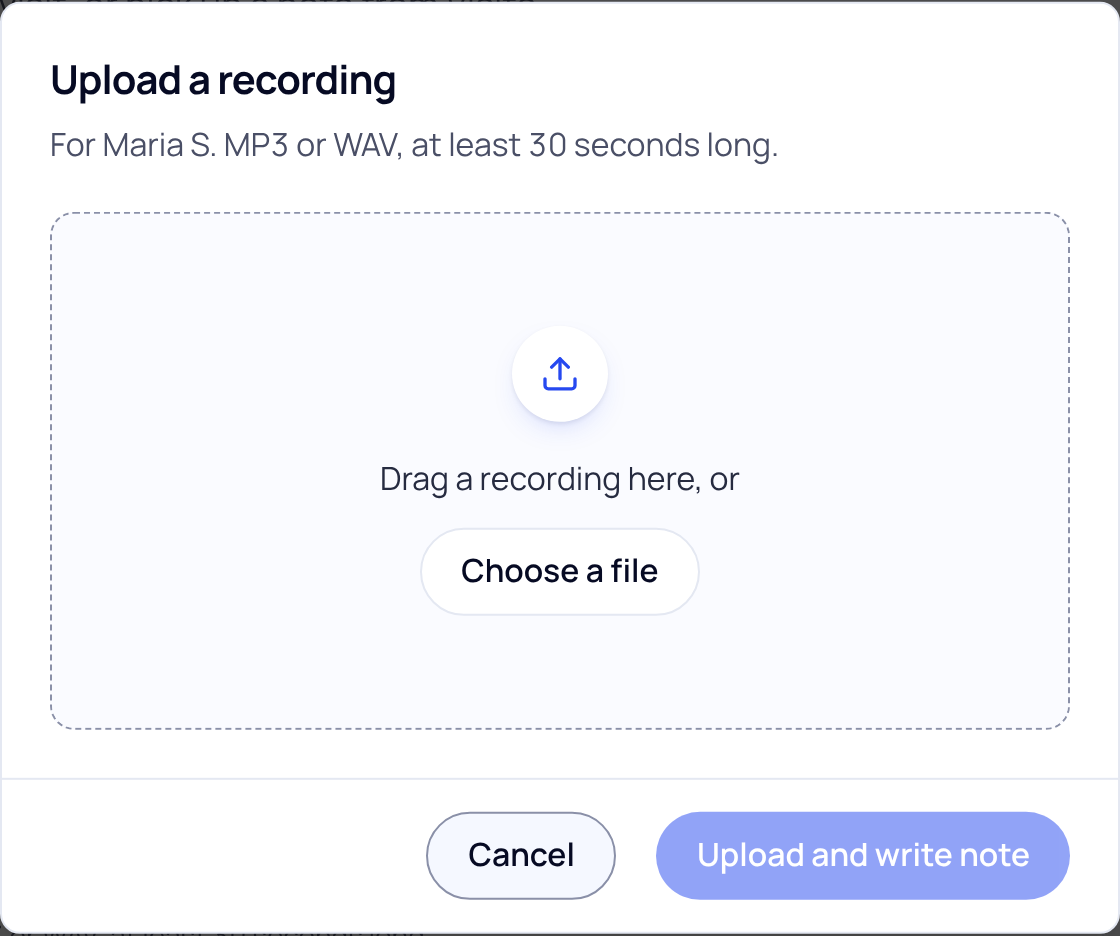
- Press Choose a recording. A window opens. Drag the file into it, or press Choose a file.
- Press Upload and write note. Keep the page open while the audio uploads.
Supported files
- MP3 or WAV. Other formats show "That file type isn't supported". Export the recording again as MP3 or WAV.
- At least 30 seconds long. A shorter file shows "Recording too short".
- If SOAPsuds cannot read the file's length, you see "We couldn't read that file". Export it again as MP3 or WAV.
An upload has no recording consent tick, because the recording was agreed to when it was made.
How long it takes
A screen shows three steps: Uploading the audio (with a percentage), Saving the visit and Writing the note. The upload time depends on the file size and your connection. Once the visit is saved you go to Visits, where the note opens as soon as it is written. If it takes longer than usual, Visits says so. Longer recordings can take a few minutes, and nothing is lost if you leave the page.
If the connection drops, you see "The recording didn't upload". Nothing was saved. Press Try again, or Back to start and choose the file again later.
Some practices do not offer uploads. If you do not see Upload recording, ask your practice admin.
Did this answer your question?
Still need help?
Email support@soapsuds.io or send us a message. Please don't include patient names or details; the visit date and time is enough for us to find it.