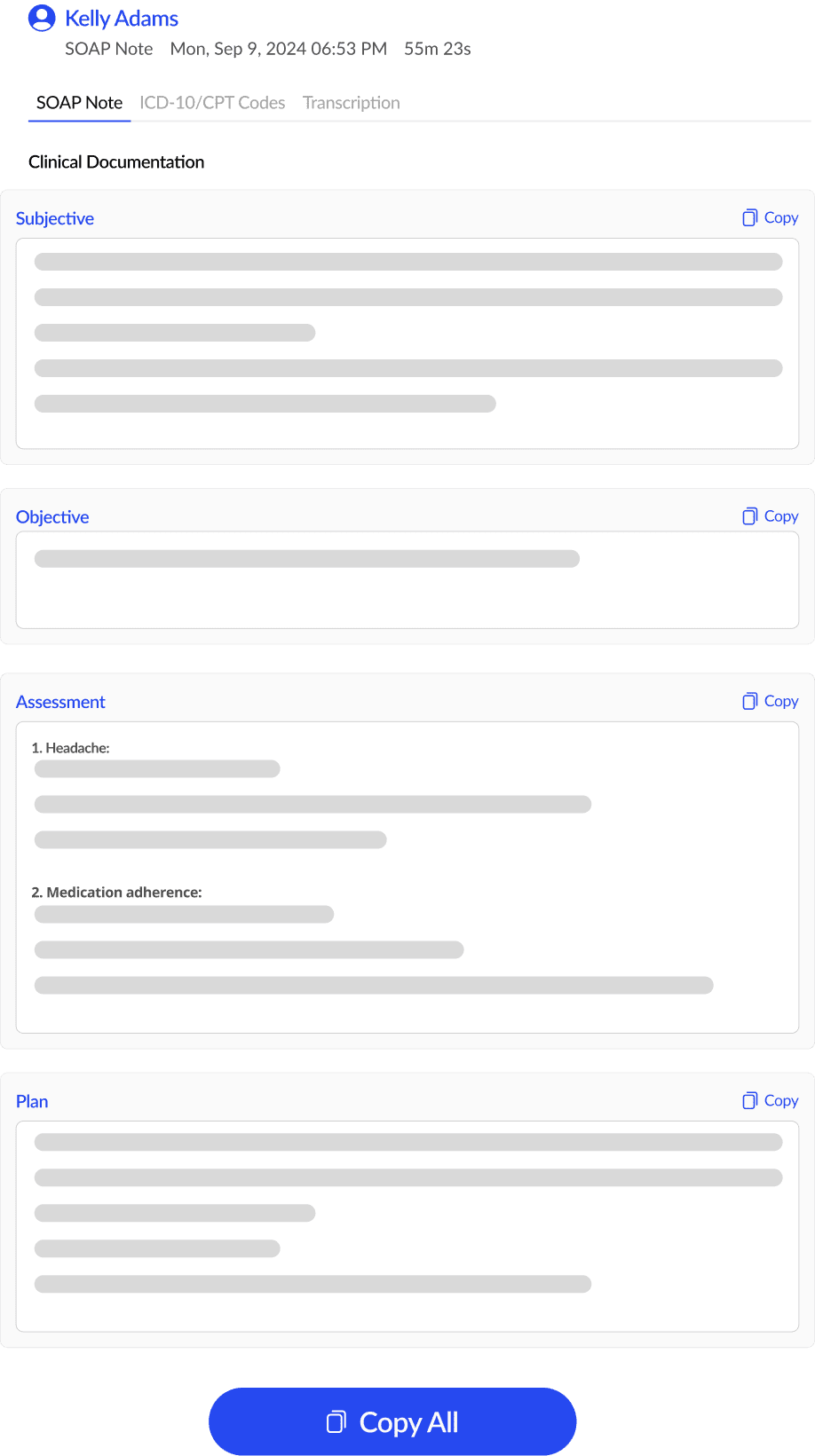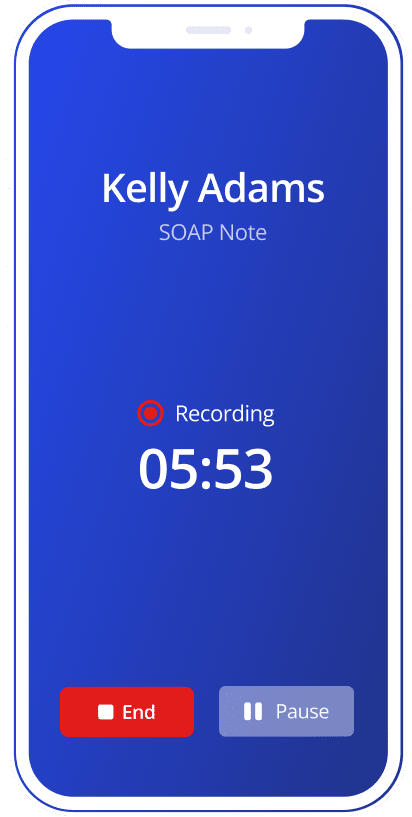
Which one to choose
| Choose | When | What is recorded |
|---|---|---|
| In person | The patient is in the room with you, on a computer or a phone. | Your microphone. |
| Telehealth | The visit is a video call you run on this computer. | The sound of the call (from the tab you share) plus your microphone. |
If you pick In person for a video call, SOAPsuds may only hear your side, because the patient's voice comes through your headphones.
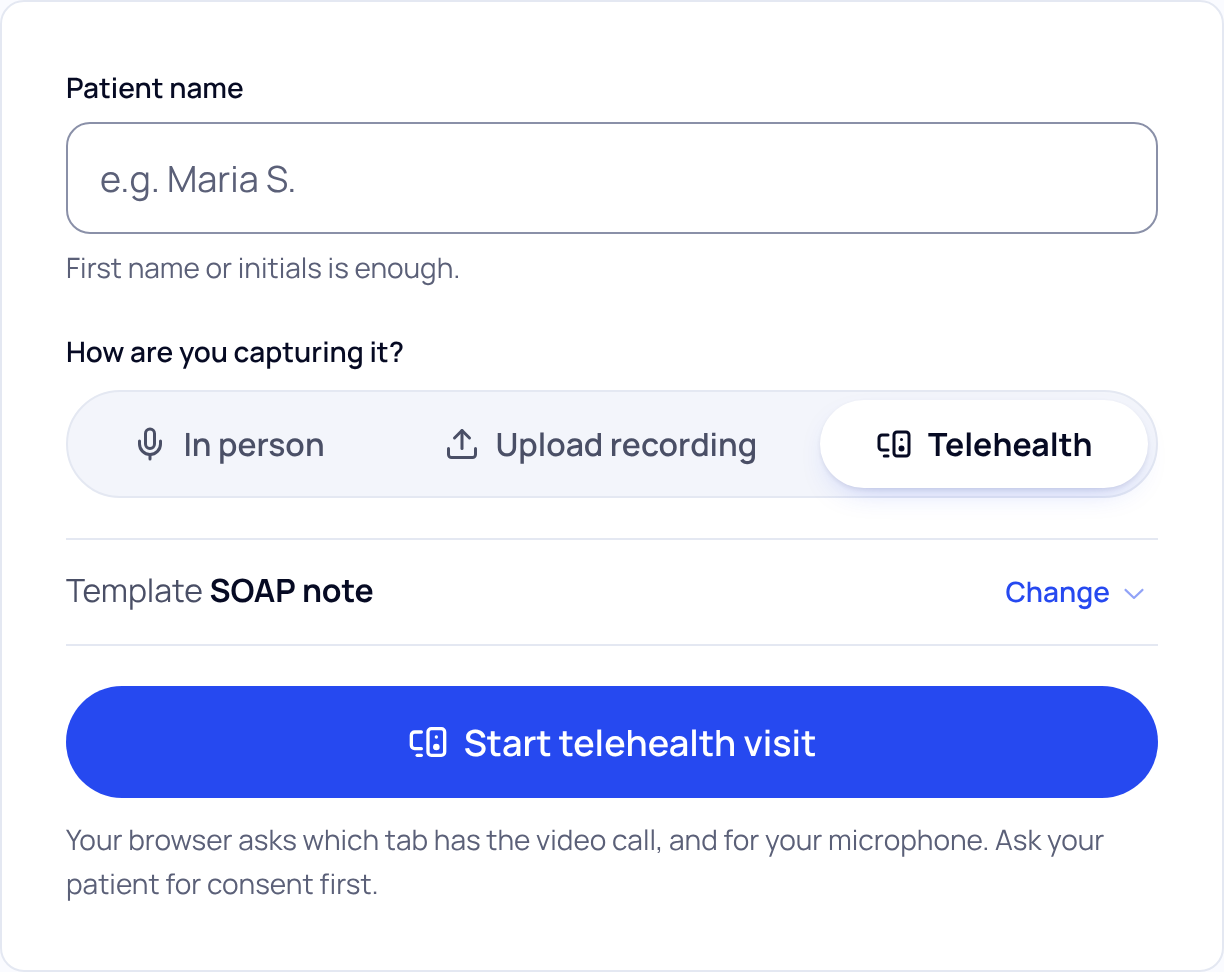
Start a telehealth visit
- Open the video call first. Have the call open in a tab of the same browser, so you can pick it.
- On New visit, type the patient's name and choose Telehealth. Then press Start telehealth visit.
- Pick the call when your browser asks what to share. Your browser shows a sharing window. Choose the tab with the video call, and turn on the switch to share that tab's audio. Then choose Share.
- Allow your microphone. If your browser asks, choose Allow. The bar says "Choose the call to share" until you pick one, then "Recording".
Pause, Resume and End work the same as for an in-person visit. If you stop sharing from the browser, the bar says the call's sound is no longer recorded; your microphone still is.
If you see "No sound from that tab", share the tab with your telehealth call again and turn on Share tab audio. If you see "Sharing blocked", allow screen and microphone sharing for SOAPsuds in your browser, then start again.
On a phone
A phone browser cannot record the sound of a video call. On a phone, SOAPsuds shows "Telehealth needs a computer" with Switch to in person. Use a computer for telehealth visits.
Did this answer your question?
Still need help?
Email support@soapsuds.io or send us a message. Please don't include patient names or details; the visit date and time is enough for us to find it.