Start the visit
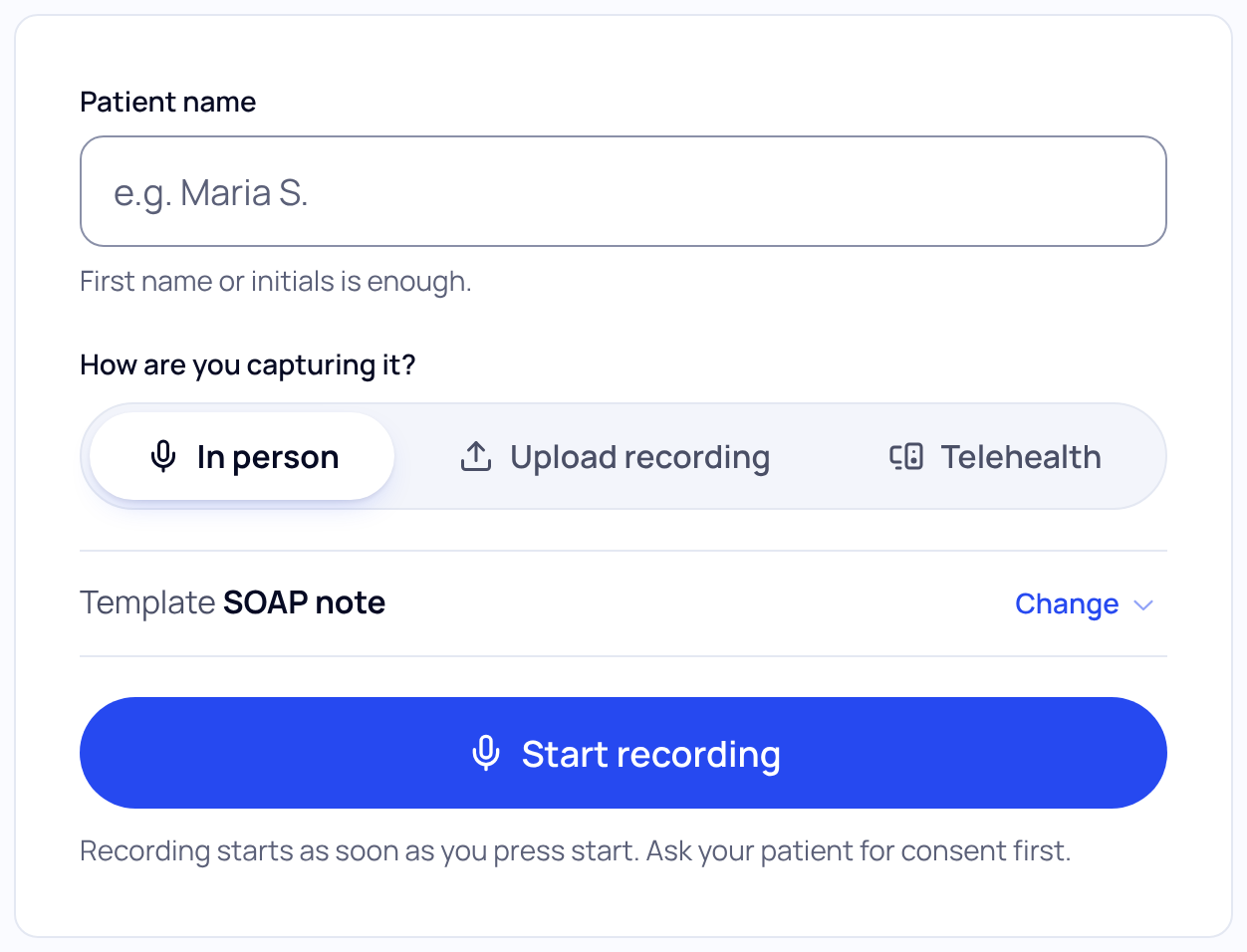
- Open New visit. It's where SOAPsuds opens. You can also choose New visit at the top of the menu.
- Type the patient's name. First name or initials is enough.
- Choose how you're capturing it. Pick In person for a patient in the room. Upload recording and Telehealth are the other choices.
- Check the template. The line under it shows your template, for example SOAP note. Choose Change to use another one for this visit.
- Ask your patient, then press Start recording. Recording starts as soon as you press it. The first time, your browser asks to use the microphone: choose Allow.
End the visit
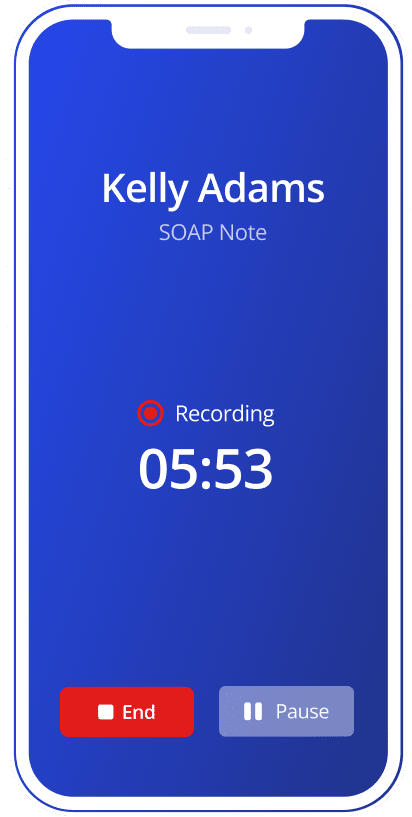
Use Pause if you need a break, then Resume. When the visit is over, press End recording (End on a phone). A note needs at least 30 seconds of conversation.
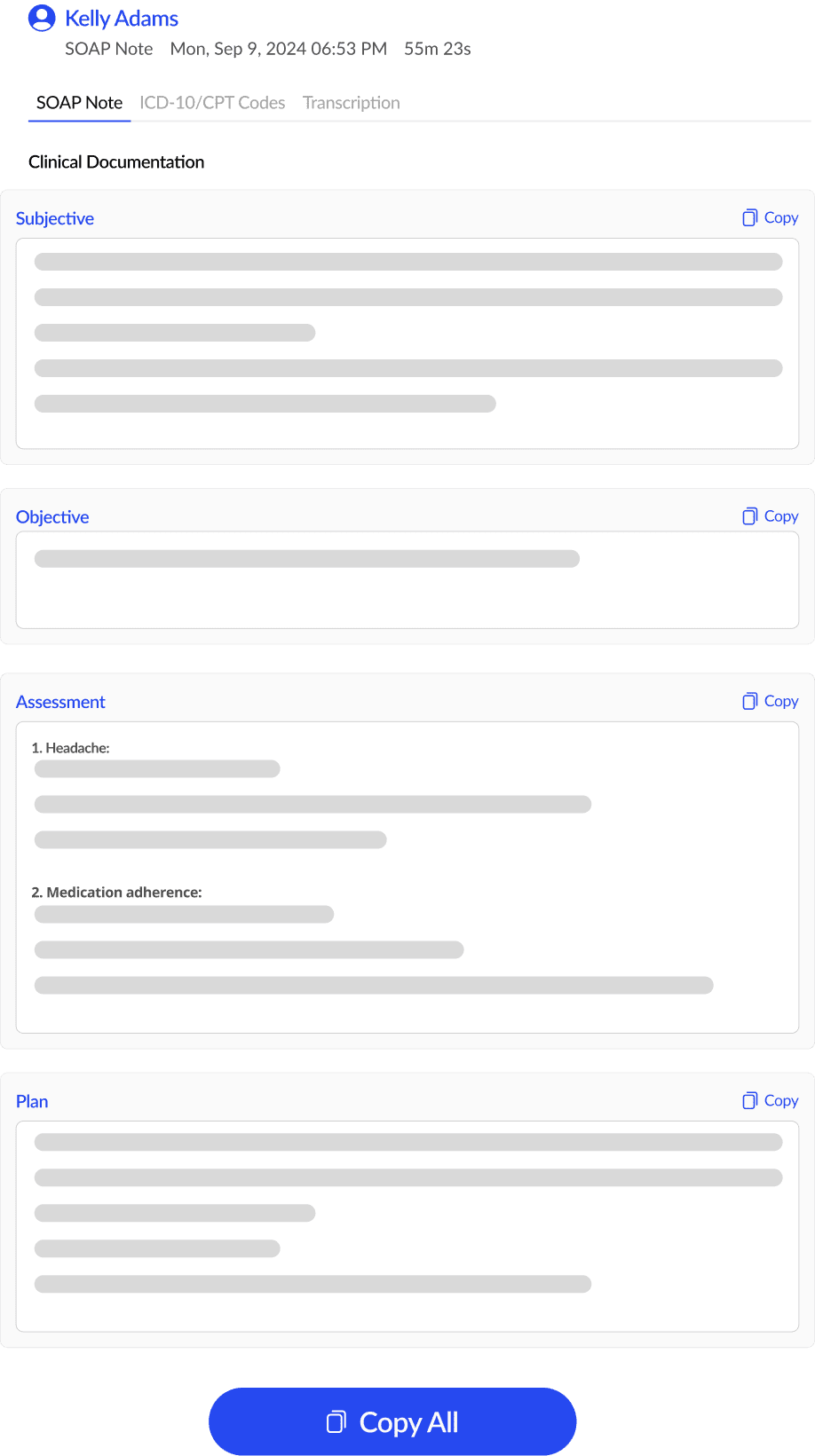
SOAPsuds then writes the note. You'll see Writing the note for and the patient's name. The draft opens by itself when it's ready, and you can keep working meanwhile.
Review it and copy it into your EHR
- Read the draft. It is marked AI draft · Not reviewed. Type straight into any box to fix it; changes save as you type.
- Look at the Documentation check. It lists parts of the note you may want to fill in. It is not related to coding level or payment, and it never stops you copying.
- Choose Mark reviewed. This shows you have checked the note.
- Choose Copy full note. Paste it into your EHR. Export has Download PDF and other ways out.
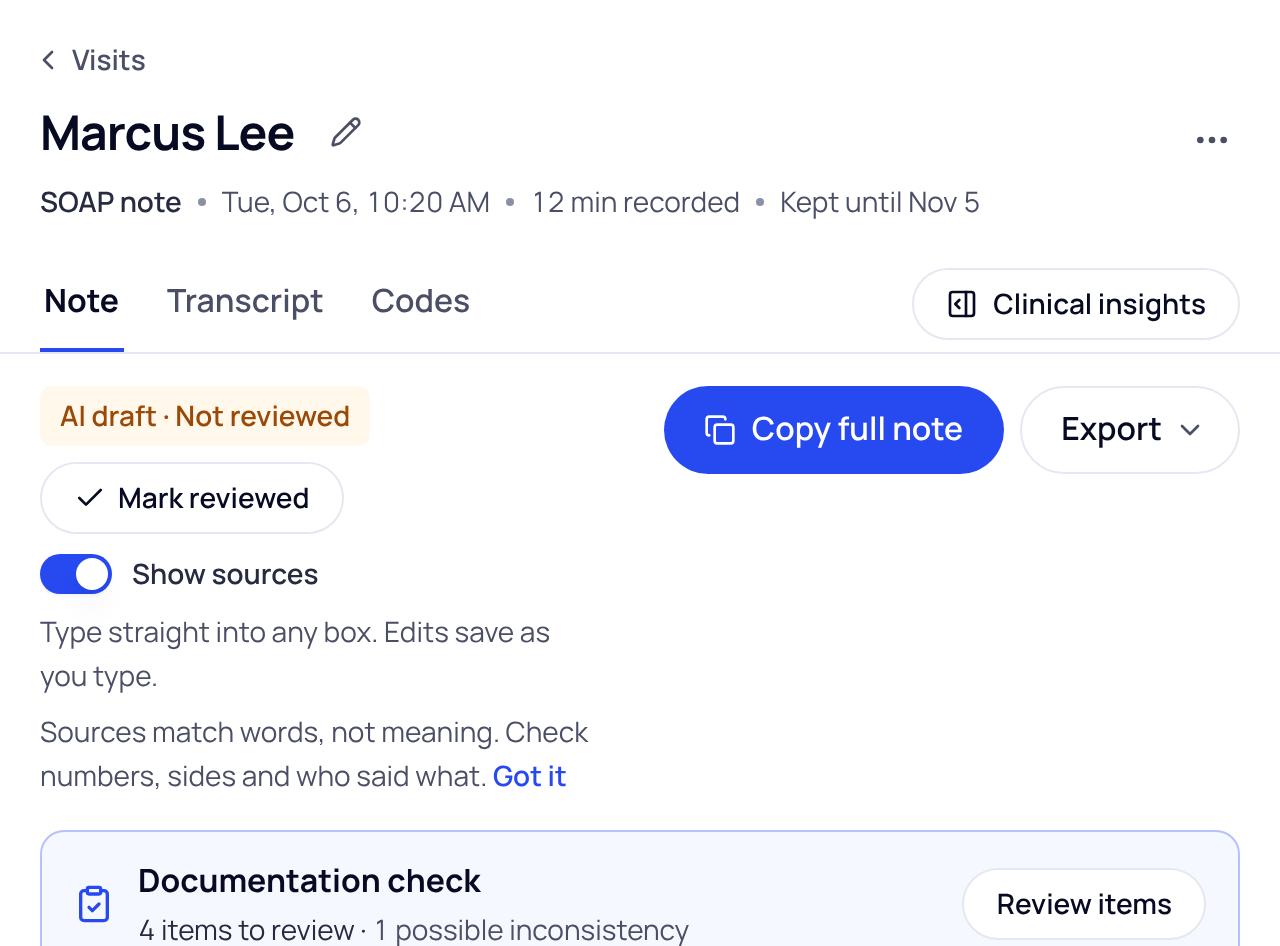
Visits are deleted 30 days after the visit. Copy or download the note before the Kept until date.
Did this answer your question?
Still need help?
Email support@soapsuds.io or send us a message. Please don't include patient names or details; the visit date and time is enough for us to find it.