Sign in
Open SOAPsuds in your phone's web browser and sign in the same way you do on a computer: email and password, or Google, Microsoft or Apple. Your visits, templates and settings are the same on every device.
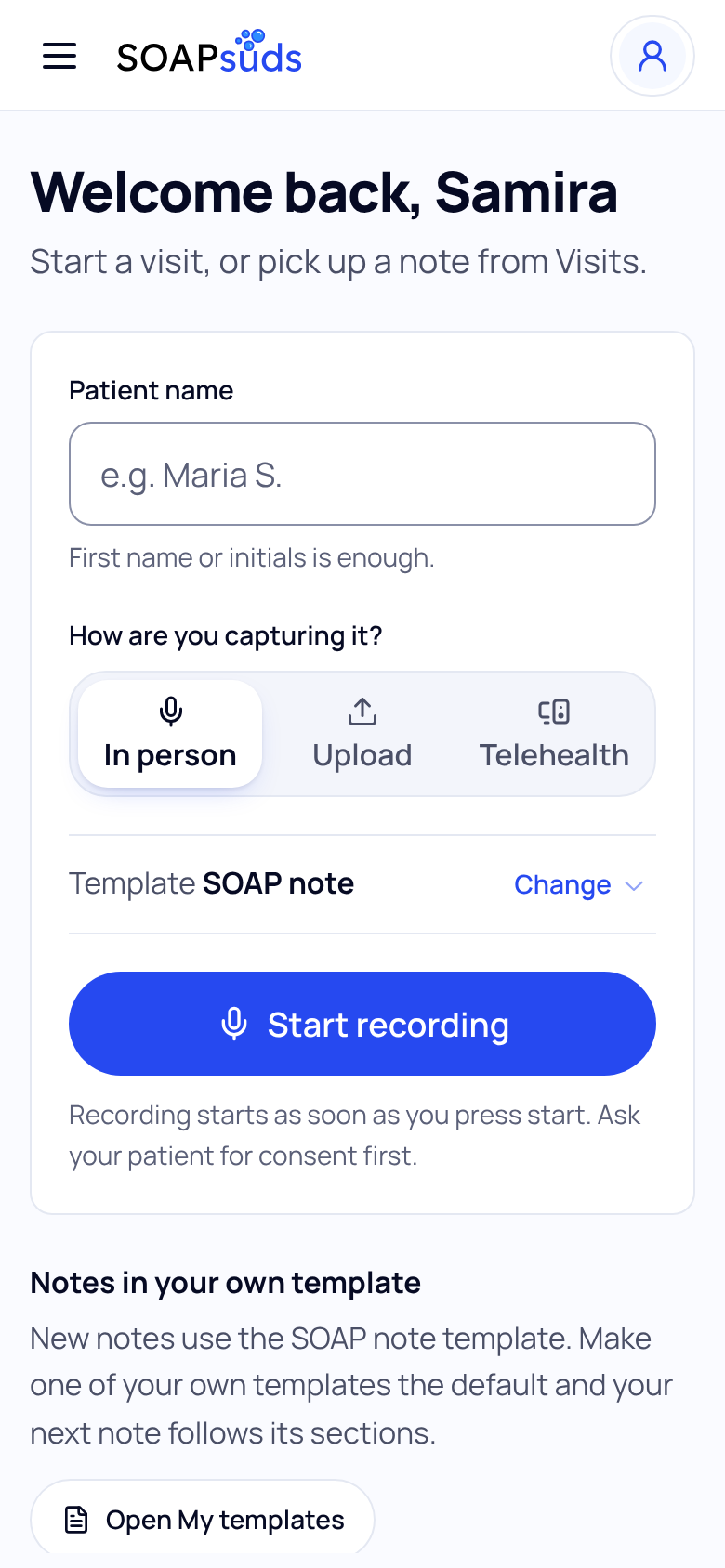
The menu is behind the three-line button at the top left. New visit sits at the top of the screen.
Record a visit
- Type the patient's name. First name or initials is enough.
- Pick In person or Upload. Telehealth needs a computer: a phone browser can't record the audio of a video call. If you pick it, choose Switch to in person.
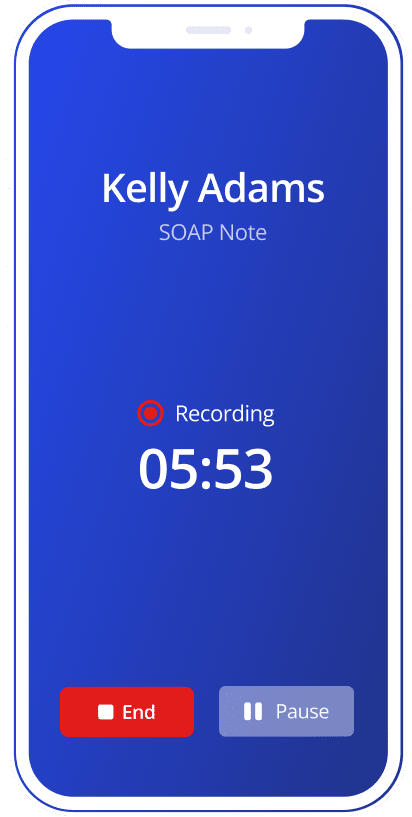
- Press Start recording. Allow the microphone when your phone asks.
- Press End when you're done. On a phone the button is called End.
Keep SOAPsuds open on screen until your visit has uploaded, especially on an iPhone. If you lose signal, recording still works: the visit is kept on your phone and uploads by itself when it can.
Review and copy the note
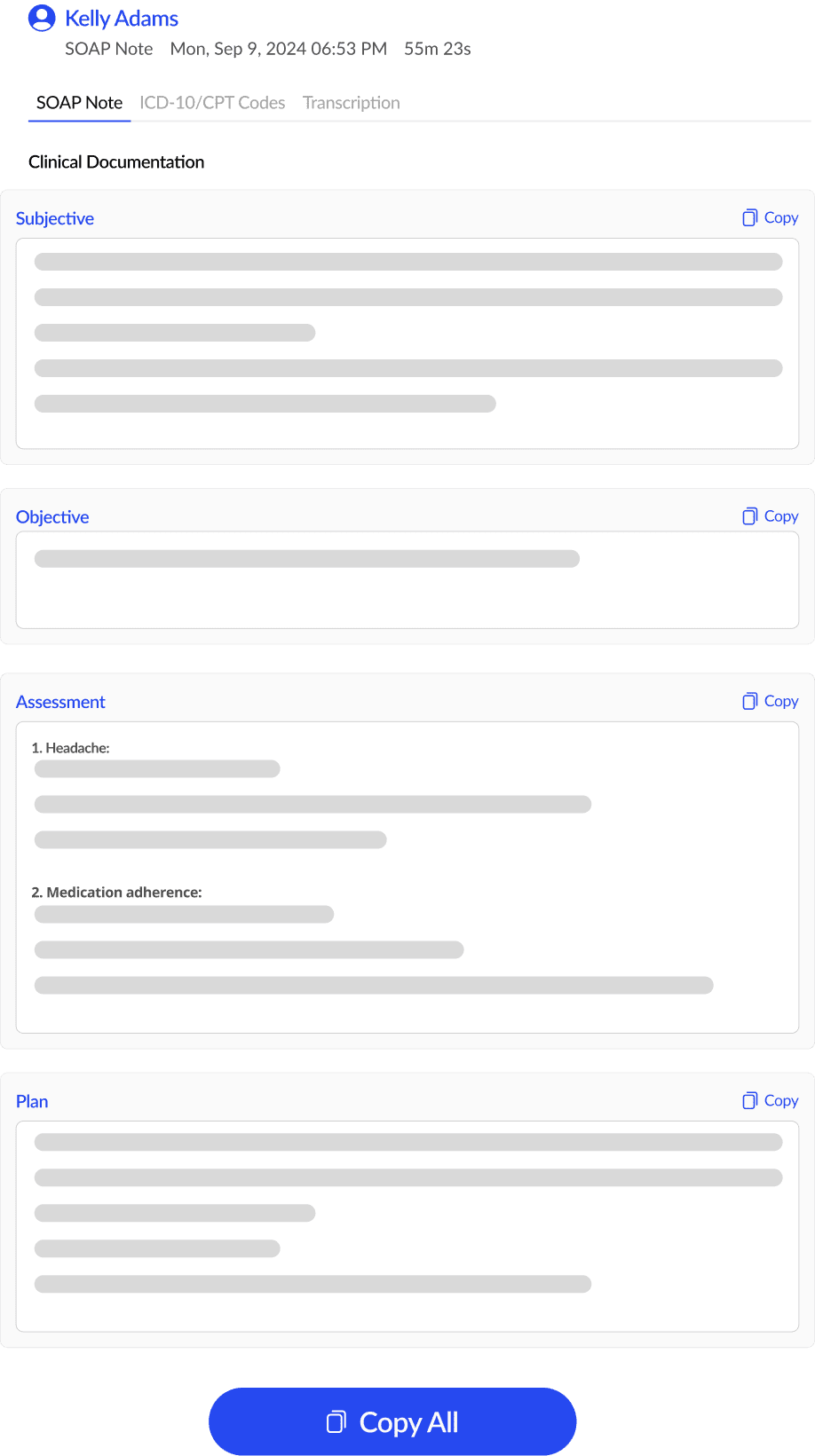
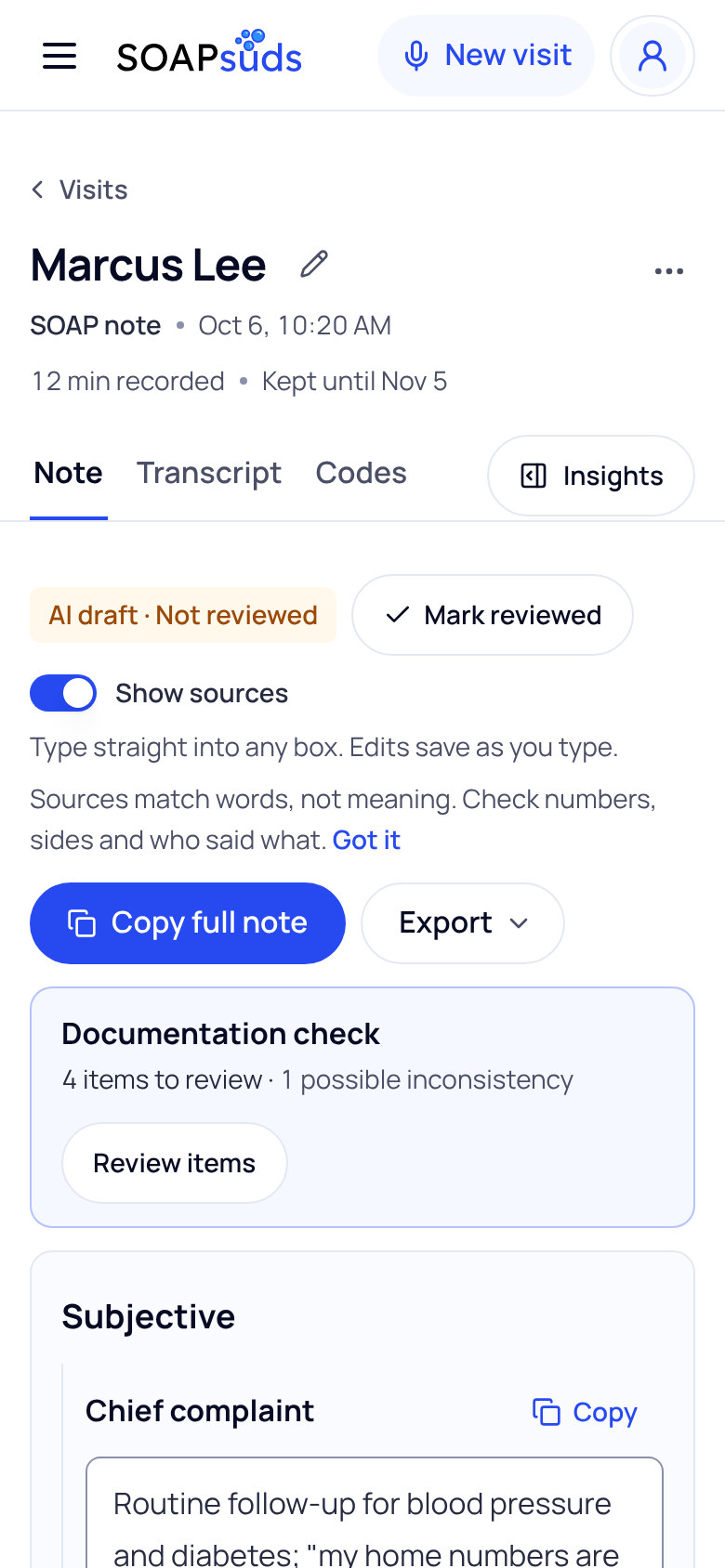
Open the visit from Visits. Type into any box to fix it, choose Mark reviewed, then Copy full note. Each section also has its own Copy.
Some desk work, like building a template, works on a phone but is easier on a computer. The screen tells you when that's the case.
Did this answer your question?
Still need help?
Email support@soapsuds.io or send us a message. Please don't include patient names or details; the visit date and time is enough for us to find it.