Share the call with its sound
For a telehealth visit, SOAPsuds records two things: your microphone, and the sound of the call from the tab or window where it runs.
- Open the call first. Start the video call in its own browser tab.
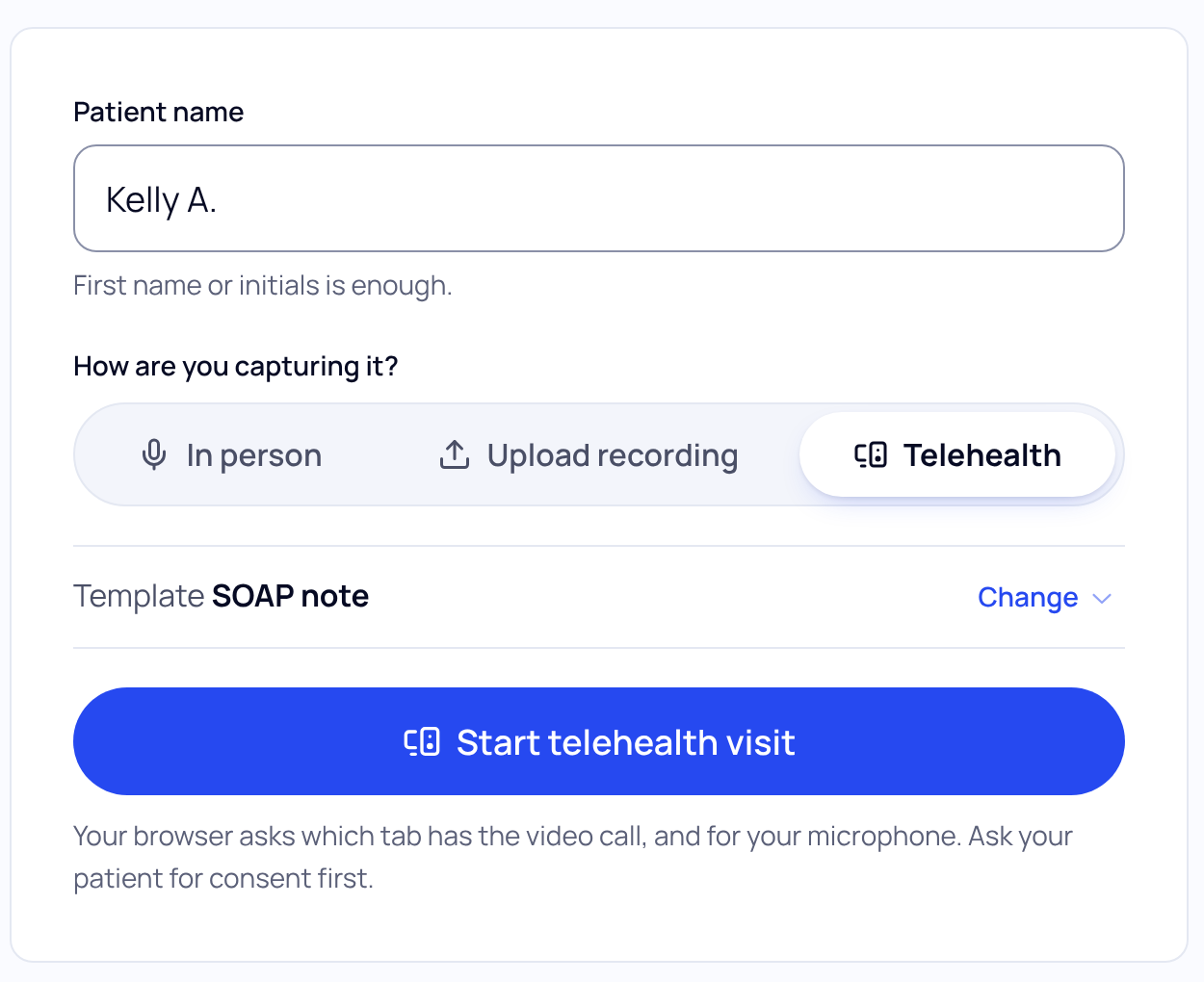
- Start the telehealth visit. On New visit, choose Telehealth, then press Start telehealth visit.
- Pick the call’s tab. Your browser asks what to share. Choose the tab with the video call.
- Turn on the sound. Switch on Share tab audio (the wording may differ by browser), then press Share.
- Allow the microphone. If your browser asks for the microphone too, choose Allow.
If you see a message
- No sound from that tab: you shared a tab without its sound. Share the tab with your telehealth call and turn on Share tab audio.
- Sharing blocked: allow screen and microphone sharing for SOAPsuds in your browser, then start the telehealth visit again.
- Couldn’t start the telehealth visit: start the visit again.
Headphones and phones
- With headphones on, the patient’s voice reaches SOAPsuds only through the shared tab’s sound, so make sure tab audio is on.
- If your microphone is muted on your computer, SOAPsuds still records the call’s sound, but your own voice may be missing. Check your mute.
- Telehealth needs a computer. A phone browser can’t record the audio of a video call.
If the call runs in a separate app (not a browser tab), the browser may not be able to share its sound. Join the call in a browser tab instead.
Did this answer your question?
Still need help?
Email support@soapsuds.io or send us a message. Please don't include patient names or details; the visit date and time is enough for us to find it.