If SOAPsuds says your microphone is blocked
When you press Start recording, SOAPsuds first checks the microphone. If the browser has blocked it, you see Your microphone is blocked.
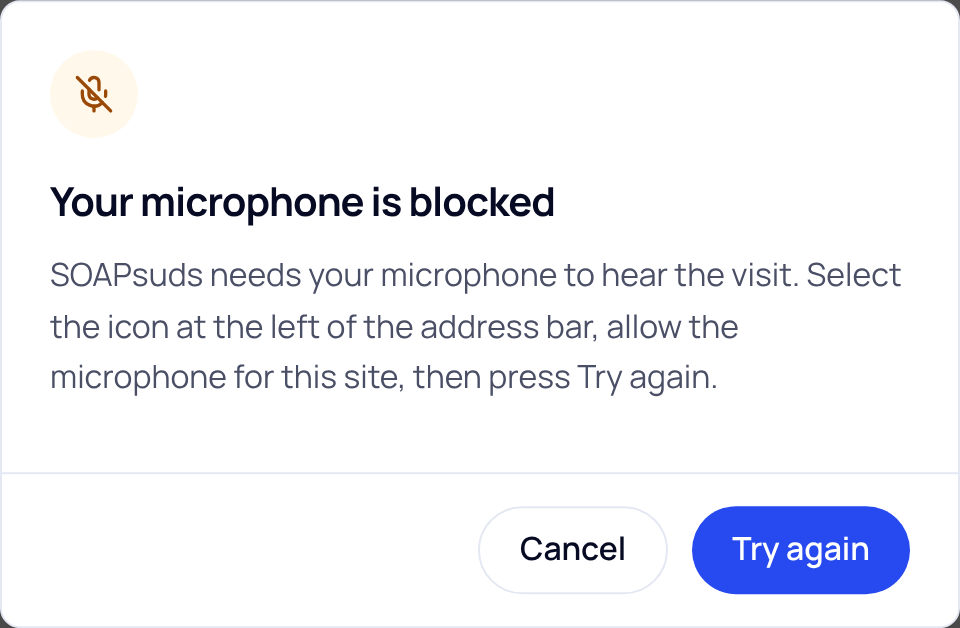
- Open the site settings. Select the icon at the left of the address bar (a lock or sliders icon).
- Allow the microphone. Set Microphone to Allow for this site.
- Press Try again. If it still says it’s blocked, reload the page and start the visit again.
On a phone or tablet
- iPhone or iPad (Safari): tap aA in the address bar, then Website Settings, and set Microphone to Allow. Also check Settings›Privacy & Security›Microphone on the device.
- Android (Chrome): tap the icon at the left of the address bar, then Permissions, and allow the microphone.
When SOAPsuds asks for the first time, it says Allow your microphone and your browser asks next. Choose Allow.
If it’s recording but hears nothing
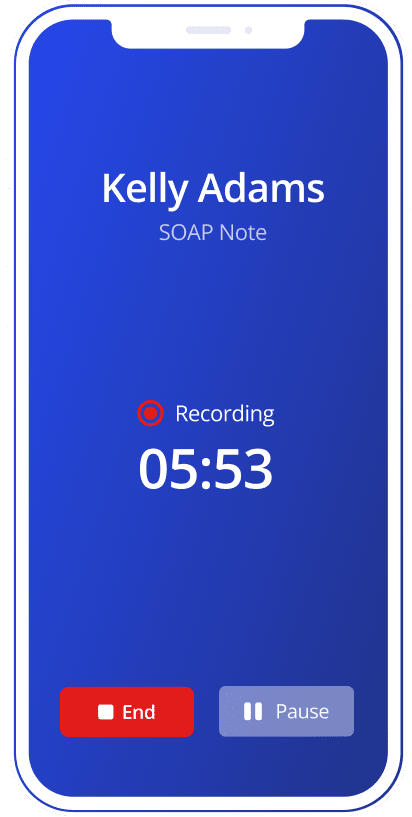
If the microphone sends no sound at all for a few seconds, a line on the recorder bar says Your microphone isn’t picking up any sound. Check it isn’t muted. On an in-person visit the status reads No sound. Recording doesn’t stop.
- Check the mute switch on your headset or computer.
- Make sure the right microphone is chosen in your computer’s sound settings.
- Close other apps that might be using the microphone, such as a video call.
- A wireless headset that switched off can also cause this.
Other messages
- Microphone blocked: allow microphone access for SOAPsuds in your browser, then start the visit again.
- Couldn’t start recording: something went wrong with the microphone. Check it’s connected, then try again.
Did this answer your question?
Still need help?
Email support@soapsuds.io or send us a message. Please don't include patient names or details; the visit date and time is enough for us to find it.