What the two switches do
- Live transcript. The words appear on screen while a visit is recording.
- Speaker labels. Transcripts split the talk into "Speaker 1", "Speaker 2" and so on, and the clinician can set who each speaker is.
Each switch applies to everyone in your practice.
How to change them
- Decide what you want. For example, live transcript off and speaker labels on.
- Email our team. Write to support@soapsuds.io and ask our team to turn it on or off for your practice. Don't put patient details in the email.
- Tell your clinicians. The change applies to everyone in your practice.
What clinicians see when one is off
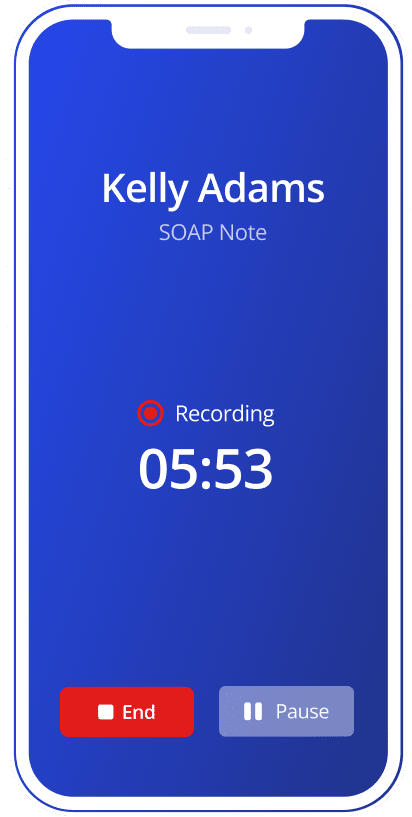
Live transcript off. There is no Live transcript panel while recording. Your notes becomes the main box, and its hint says the live transcript is off for the practice. The note is still written from the recording. If it's turned off while a visit is recording, the words so far stay and the header says Off for your practice.
Speaker labels off. The live and saved transcripts show plain paragraphs with no speaker names. On a saved visit, the side panel says Speaker labels are off for your practice.
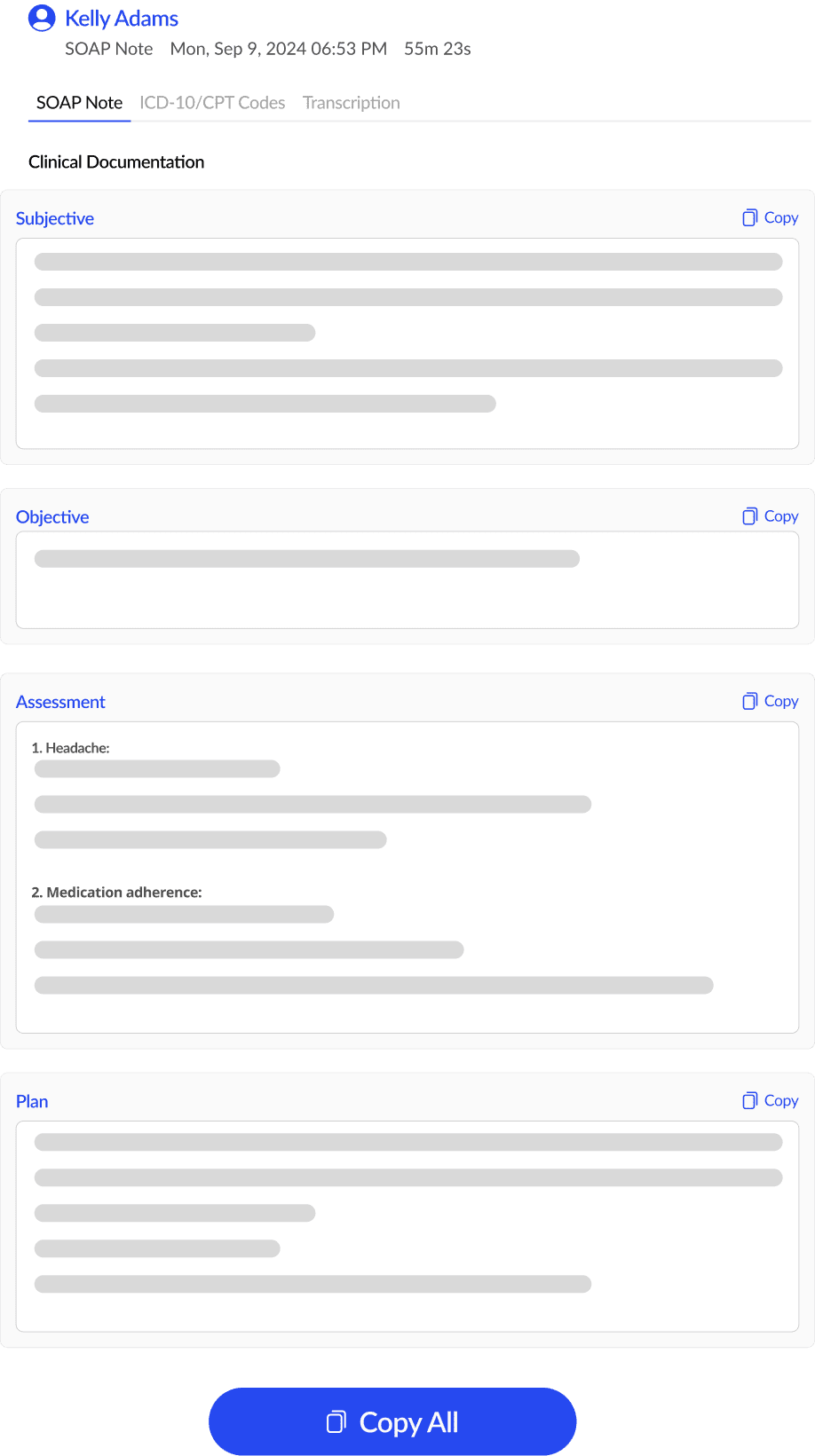
Turning these off doesn't stop the recording. The visit is still recorded and a note is still drafted for the clinician's review.
Did this answer your question?
Still need help?
Email support@soapsuds.io or send us a message. Please don't include patient names or details; the visit date and time is enough for us to find it.